NC Interpretive Language Interface
The NC Interface
NC is a programming language which you can use in cocoaNEC to describe antenna geometries, set physical parameters, request different output options and run optimization loops. The NC language is patterned after the C Programming Language, thus the name (NC stands for "NEC C").
To create a new NC model of an antenna, select New NC Model in the File Menu. cocoaNEC will open a new, untitled window for the model.
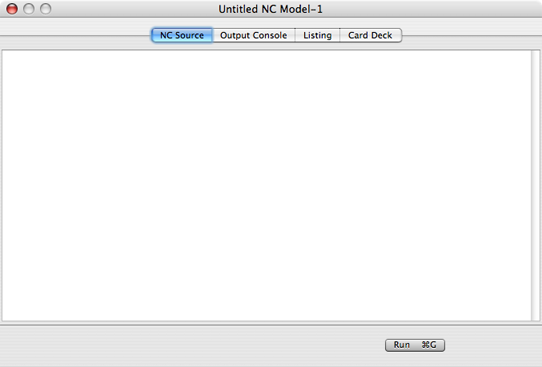
If you select Save in the File Menu while an NC window is still untitled, cocoaNEC will use the same mechanism as a Save As....
Save As... presents you with a Save File dialog for you to select the folder and file name to save the model to. The model is saved as a plain text file. The default extension for an NC file is '.nc'.
If the NC window has previously been saved, or you have opened the window from an existing .nc file by using the Open NC Model item in the File Menu, Save will update the NC file without prompting with a dialog.
You enter your program in the editor on the NC Source tab of the window.
The console pane below the editor shows the output of the printf statements in your NC program. To show or hide the console, click the console button to the left of the Run button, or choose Show Console (Command-Shift-C) in the NC menu.
If NC finds a syntax error when you press the Run button (Command-R), the model does not run. The editor selects the first line with an error and marks each error line in red, and the issue bar at the bottom of the window shows the error messages. The Errors section of the tutorial describes how to move between errors.
The Listing tab shows your program with line numbers.
If your NC program runs successfully, the card deck will be sent to the NEC engine. If the NEC engine finds an error (for example wires that are too close to ground), it may not succeed in creating an output and nothing (including the Card Deck) will show up in the Output window. However, the deck that is generated will appear in the Card Deck tab of the NC window and you might be able to discover the cause of the problem.
There is a normally hidden Stop button next to the Run button in the NC window. This button appears while the NC program is running and is hidden again when the NC program has finished executing. The Stop button allows you to quit from a repeat or while loop.
