cocoaNEC Reference Manual
Output Window
Introduction
The tabs in the Output window are used to inspect data that is created by the NEC-2 (nec2c) or NEC-4 compute engines.
The Output window is automatically opened after the NEC engine finishes processing a valid model input, with the Summary tab selected. You can also manually open the window with the Output Viewer menu item in the cocoaNEC Window menu.
The graphical information for the Output window is drawn from the data in the "line printer" output of the NEC engine.
The Cards tab shows the data that is sent to the NEC engine, and the NEC Output tabs shows the raw output from the engine.
- Summary
- Radiation Patterns
- Smith Charts
- Scalar Charts
- Geometry
- Context and Reference Plots
- Settings Panel
The Summary tab displays an azimuth plot, an elevation plot and distilled NEC output all in the same view:
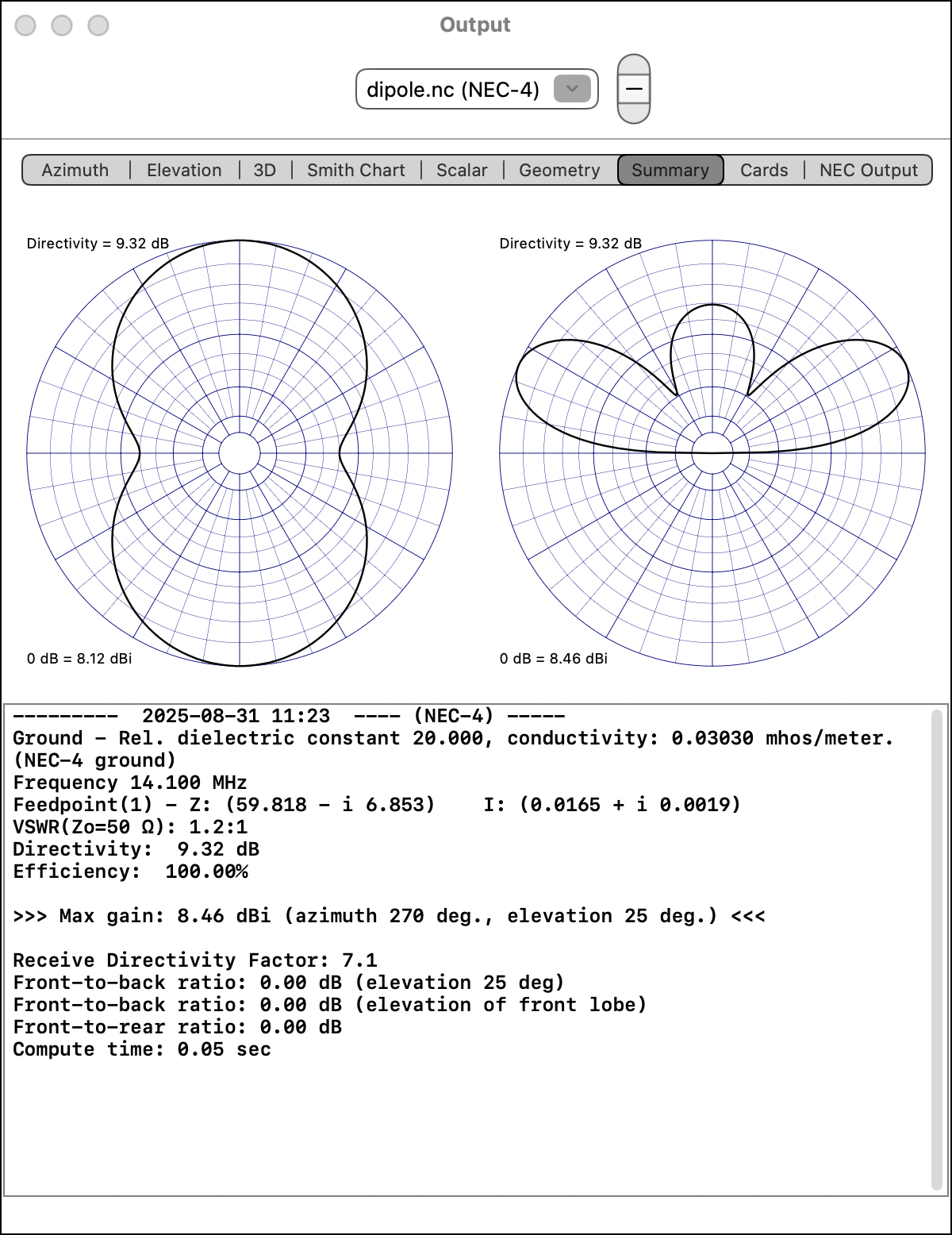
The antenna patterns at the top of the Output Summary are abbreviated copies of the Azimuth and Elevation plots. As with the larger originals, the captions at the left of the circles are the gains for the outer circle, and the directivity of the antenna.
Other data are shown in the scroll view under the antenna patterns. Here, you can find the ground used for the model together with the azimuth and elevation angles for the peak gain of the antenna. All feed point currents of a phased array are also listed in the summary.
There are two front-to-back values in the output summary, together with a front-to-rear number.
The azimuth of antenna lobe with the largest gain is considered the "front" of the antenna. The "back" of the antenna is 180 degrees from this azimuth. One of the front-to-back numbers in the output summary refers to the response in the "back" direction which has the same elevation angle as the front lobe.
The second front-to-back number compares the front lobe to the "largest" value in the back lobe over all elevation angles. These two front-to-back ratios are not always the same, with the latter one being more pessimistic.
The azimuth angles that are more than 90 degrees away from the "front" lobe is considered by cocoaNEC to be the "rear" of the antenna. The front-to-rear number is computed by looking for the largest lobe on the rear of the antenna. The front-to-rear number can be a useful for evaluating antennas that have cardiod patterns (very typical of two element vertical phased arrays) where the front-to-back ratio can return an infinite number, but obviously not reflecting the true performance of an antenna in real world use.
Summary: Average Gain
The antenna model's Average Gain is listed in the output summary when the antenna is modeled in free space or over perfect ground. This number can be used to judge if the model of a lossless antenna has converged (the so called Average Gain Test or AGT).
Regardless of the directive gain, the average gain of any lossless antenna should be close to 1.0 (0 dB). This fact can be used to judge if the NEC model of an antenna has converged. Although a model's accuracy is not completely guaranteed, an antenna model that yields an average gain which is within 0.2 dB of unity can be considered to be moderately reliable. On the other hand, an antenna model whose average gain number is more than 1 dB from unity (i.e, an average gain factor that is smaller than 0.8 or greater than 1.25) is almost certain to be a poor model of a real antenna.
Radiation Patterns
A radiation pattern shows the power levels received or transmitted at directions throughout a sphere centered on the antenna. cocoaNEC instructs the NEC engine to list that information for every one degree and generates two kinds of plots. First are 2D plots, showing the pattern on a vertically-oriented plane, the Elevation plot, and a pattern on a horizontal plane, the Azimuth plot. Second is the 3D plot showing the complete radiation pattern in a viewer that allows inspecting the pattern from any angle.
The colors used in Azimuth and Elevation antenna patterns are customizable in the Settings panel.
Radiation Patterns: Elevation
The Elevation tab in the Output window takes you to the far field elevation radiation pattern of the antenna.
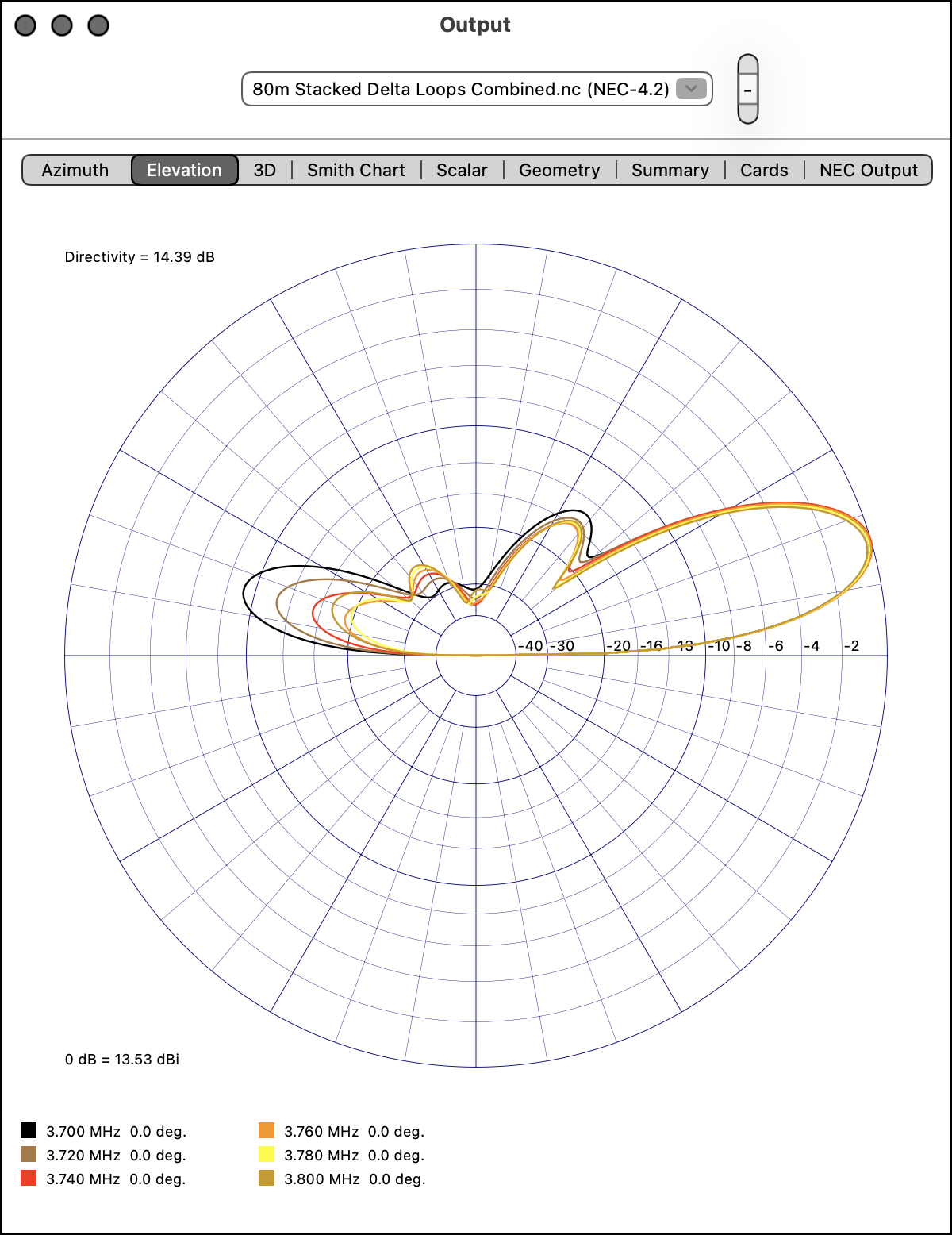
The reference gain for the outer circle ("0 dB" circle) is shown at the lower left of the plot as decibels referenced to an isotropic antenna (dBi). The relative gains (in dB) for the inner circles are labeled along the horizontal axis of the chart.
The directivity of the antenna is shown above at the upper left of the antenna pattern. A lossless antenna will have the same directivity (in dB) as the maximum isotropic gain (in dBi). When the gain value (in dBi) is different from the directivity (in dB), it can be due to losses (including ground losses), or it can be because the azimuth and elevation angles chosen for the antenna pattern are not the angles where the antenna gain peaks.
Notice that the logarithmic scale of the plot places the -10 dB point about halfway out from the center. This represent a scale factor of 0.89 per 2 dB, and is the standard which is used in ARRL publications. There are two other Scale Constants that you can choose in the Settings panel.
The patterns above each shows five antenna patterns. This is because NEC was asked to model the antenna at five different frequencies. The color captions under the antenna patterns show the black curve is the elevation pattern for 3.700 MHz, computed at an azimuth angle of 0 degrees, and so on for the other plots. When you specify multiple elevation angles in addition to multiple frequencies, you will see even more plots.
Radiation Patterns: Azimuth
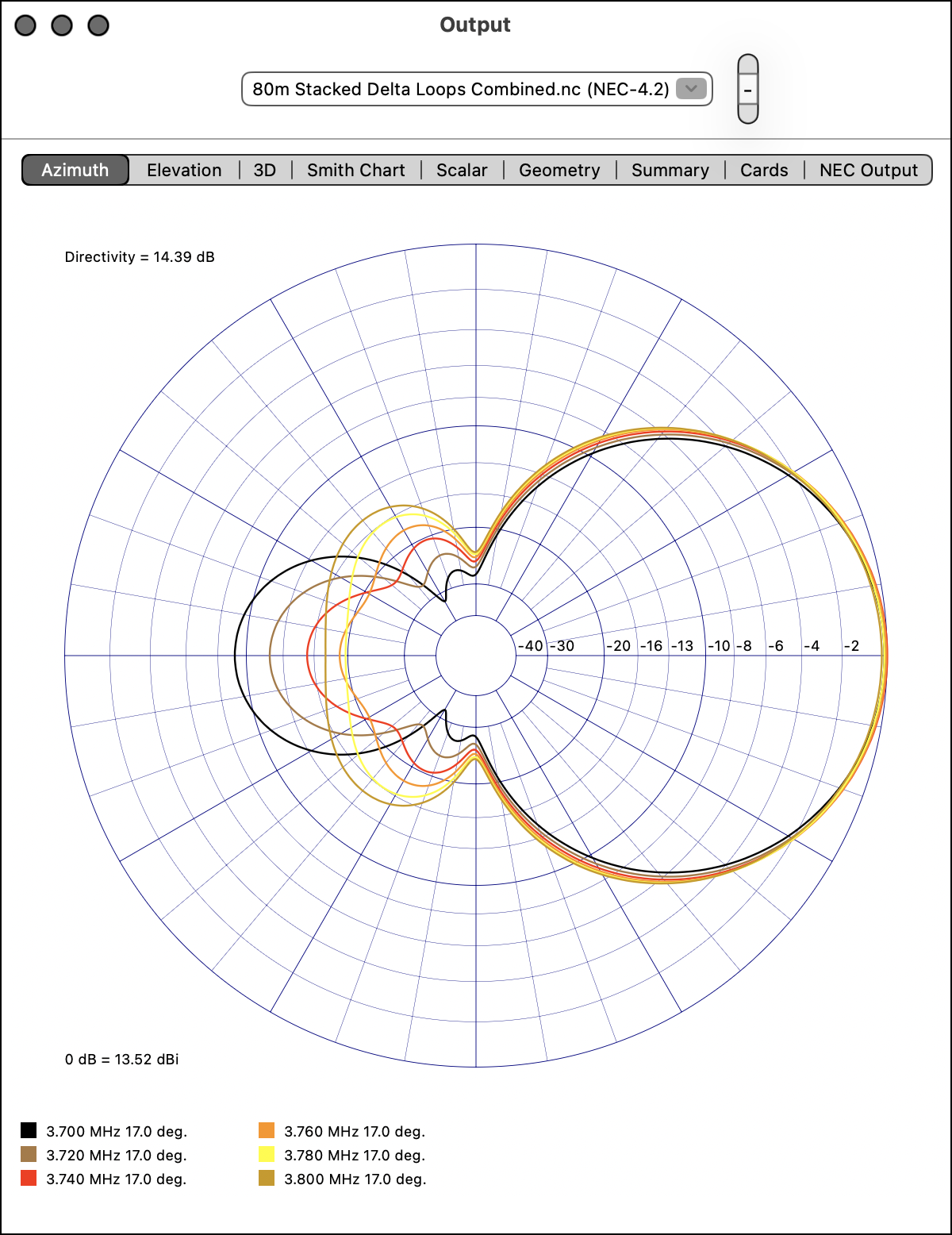
The Azimuth tab in the Output window takes you to the far field azimuth radiation pattern of the antenna. In the case of the Azimuth pattern, the color captions under the patterns will show the azimuth angle of the corresponding pattern. This is the Azimuth plot for the same antenna and frequencies for the elevation angles corresponding to maximum gain:
Radiation Patterns: 3D
The 3D tab in the Output window takes you to the antenna's 3D radiation pattern.
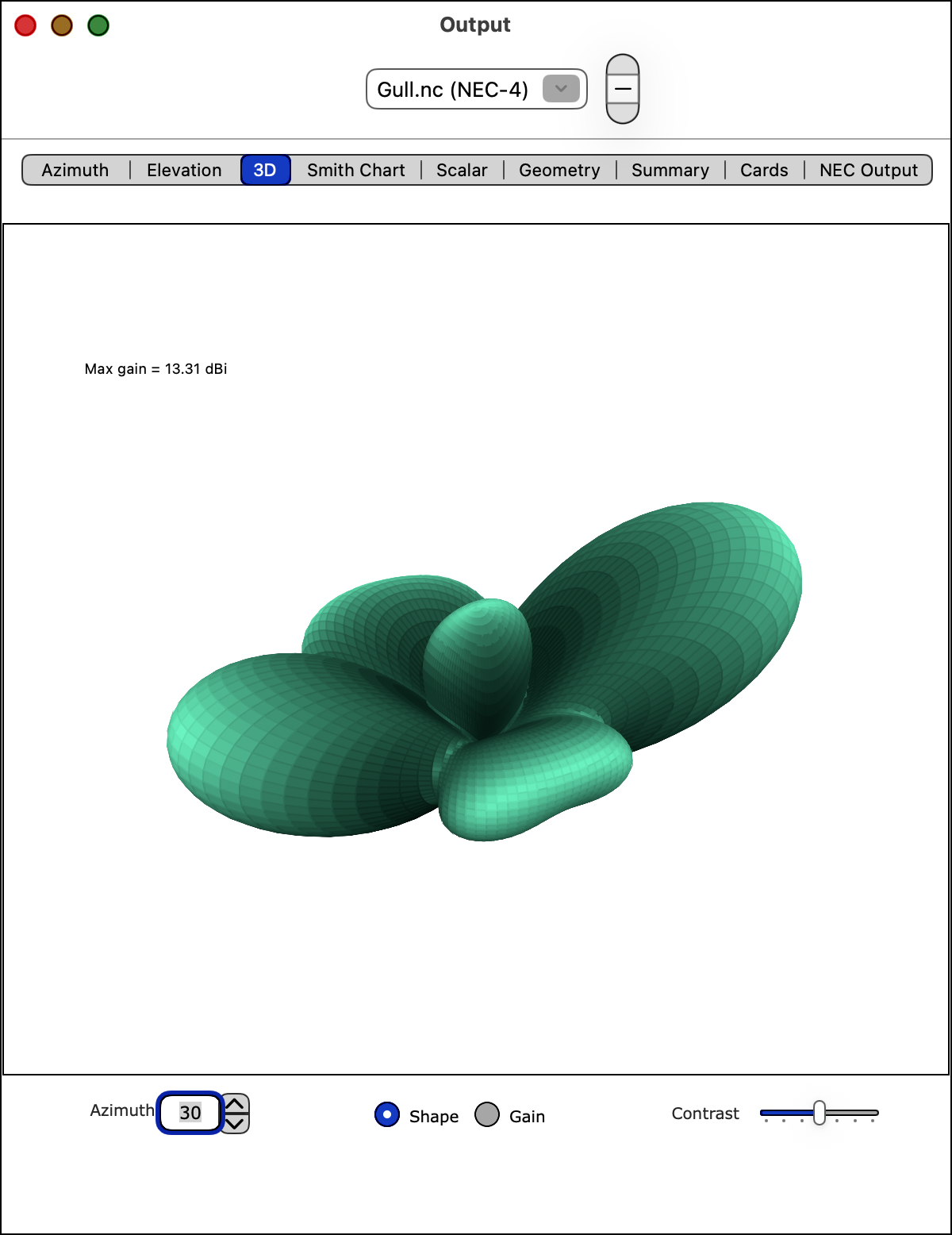
The pattern can be rotated in the azimuth by changing the Azimuth field at the bottom left of the window, or by using the stepper arrows next to the azimuth field.
You can disable 3D drawing completely on slower computers by disabling the Enable 3D Radiation Pattern menu item in cocoaNEC Settings.
The Contrast slider on the bottom right of the window lets you adjust the contrast of the image.
The plot is drawn as a "shape" of the gain of the radiation pattern. The brightness of a surface patch, shaded using Phong shading, is proportional to the surface normal of an imaginary light beam in the direction of the antenna pattern.
This 3D plot is drawn by using the gain of the antenna pattern itself to control the brightness:
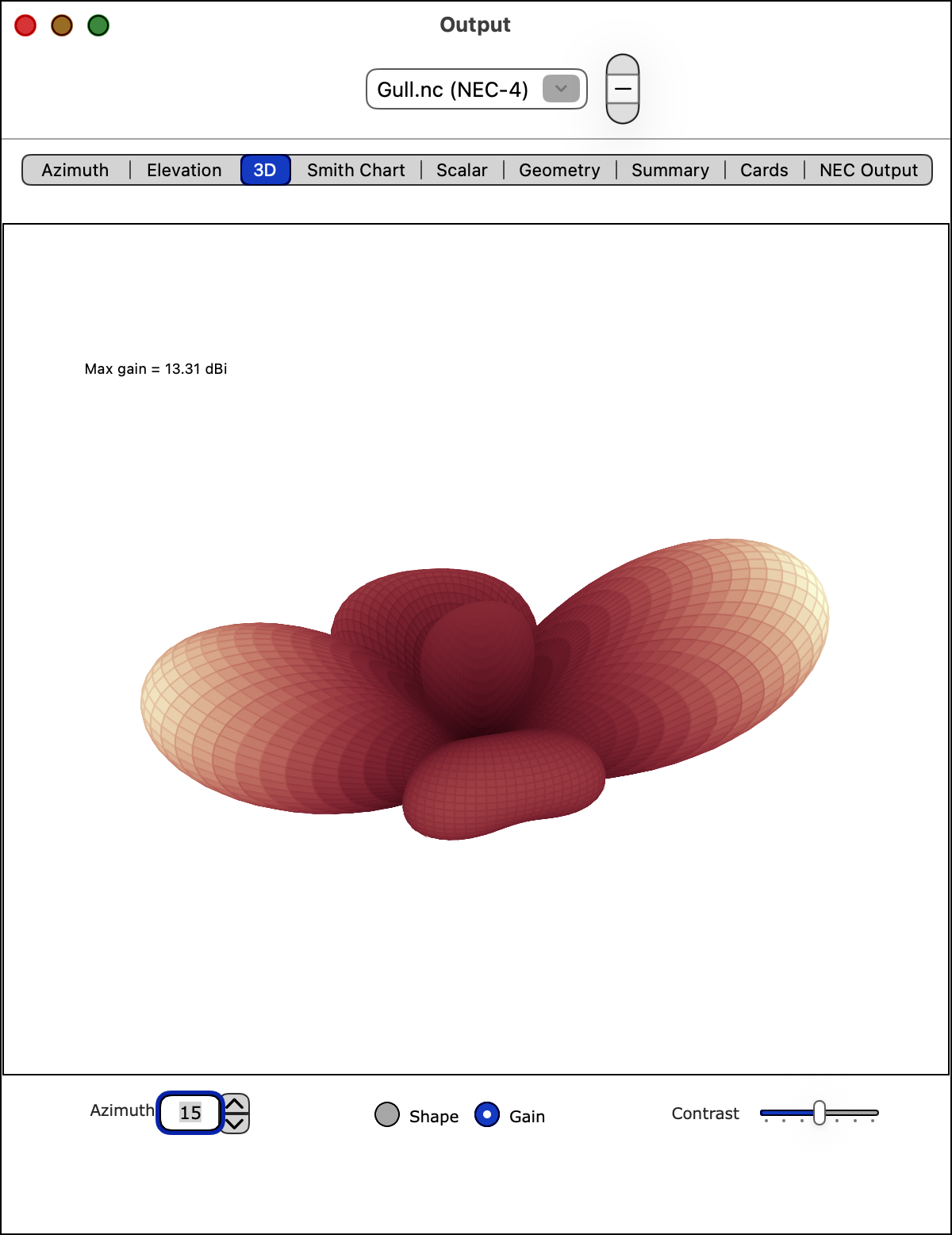
The brightness of a surface patch on the 3D surface is simply how far that point protrudes from the center of the 3D pattern. Notice that the sidelobes of the antenna are very dim (low gain) compared to the sidelobes in the Shape example. The Gain shading is more useful for locating the high gain directions of the antenna while Shape shading is more useful for showing the 3 dimensional shape of the radiation pattern.
Radiation Patterns: Polarization
In addition to total power gain, the NEC output also provides power gains for horizontal and vertical polarizations. cocoaNEC computes the left hand and right hand circular polarization responses from the axial ratio and predominant polarization values. When cocoaNEC is first run, its output window defaults to plotting total power. You can select which polarization to plot either by selecting one of the Polarization radio buttons in the Settings panel.
You can draw both Horizontal and Vertical polarization responses on the same plot by choosing "Horizontal+Vertical." Likewise, both RHCP and LHCP responses can be drawn on the same plot. The figure below shows the Output Summary azimuth and elevation patterns for a quadrature fed Inverted Vee Turnstile antenna when "RHCP+LHCP" is selected:
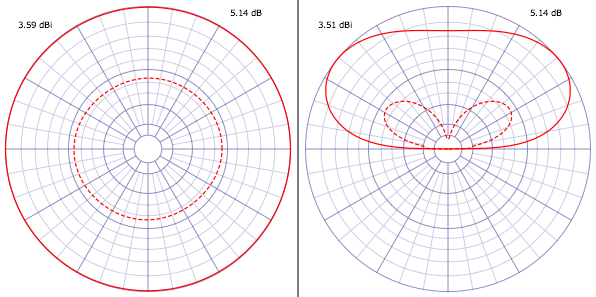
The solid line is the RHCP pattern and the dashed line is the LHCP pattern. When horizontal and vertical polarizations are combined, the horizontal polarization pattern is drawn with a solid line and the vertical polarization pattern is drawn with a dashed line.
Please note that you don't need to rerun the antenna model when you change polarization. This is an output post processing task.
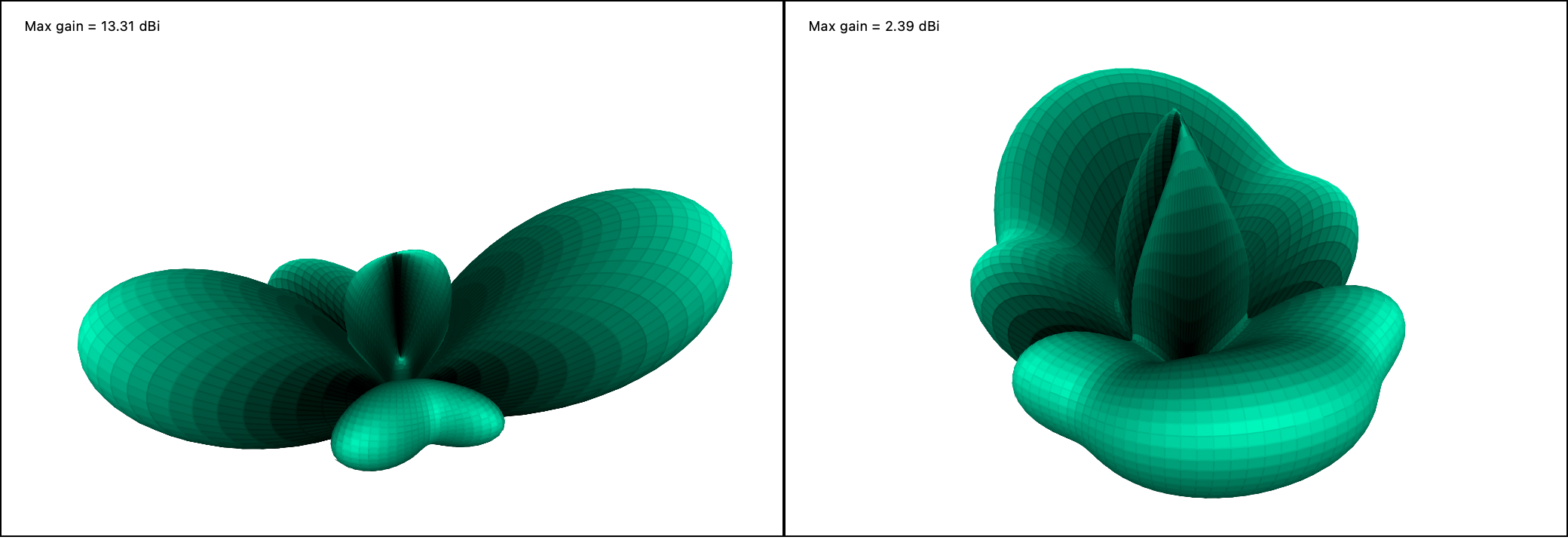
The Polarization selection also affects 3D plots. This example shows the 3D patterns for the same antenna that is shown in the above section. The left side is the pattern for horizontal polarization and the right side is the pattern for vertical polarization. Note that the Max gains are dramatically different for the two cases.
Smith Charts
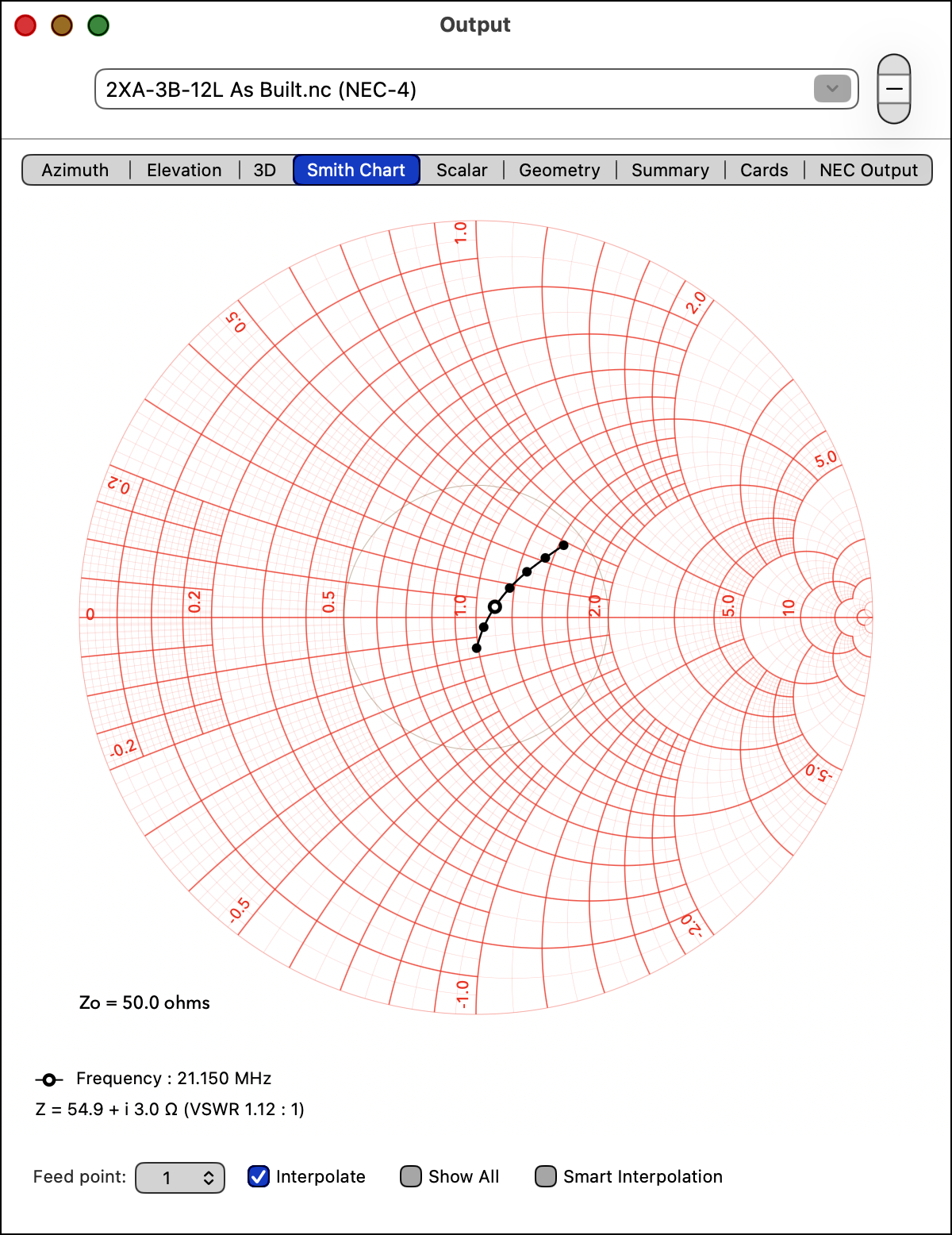
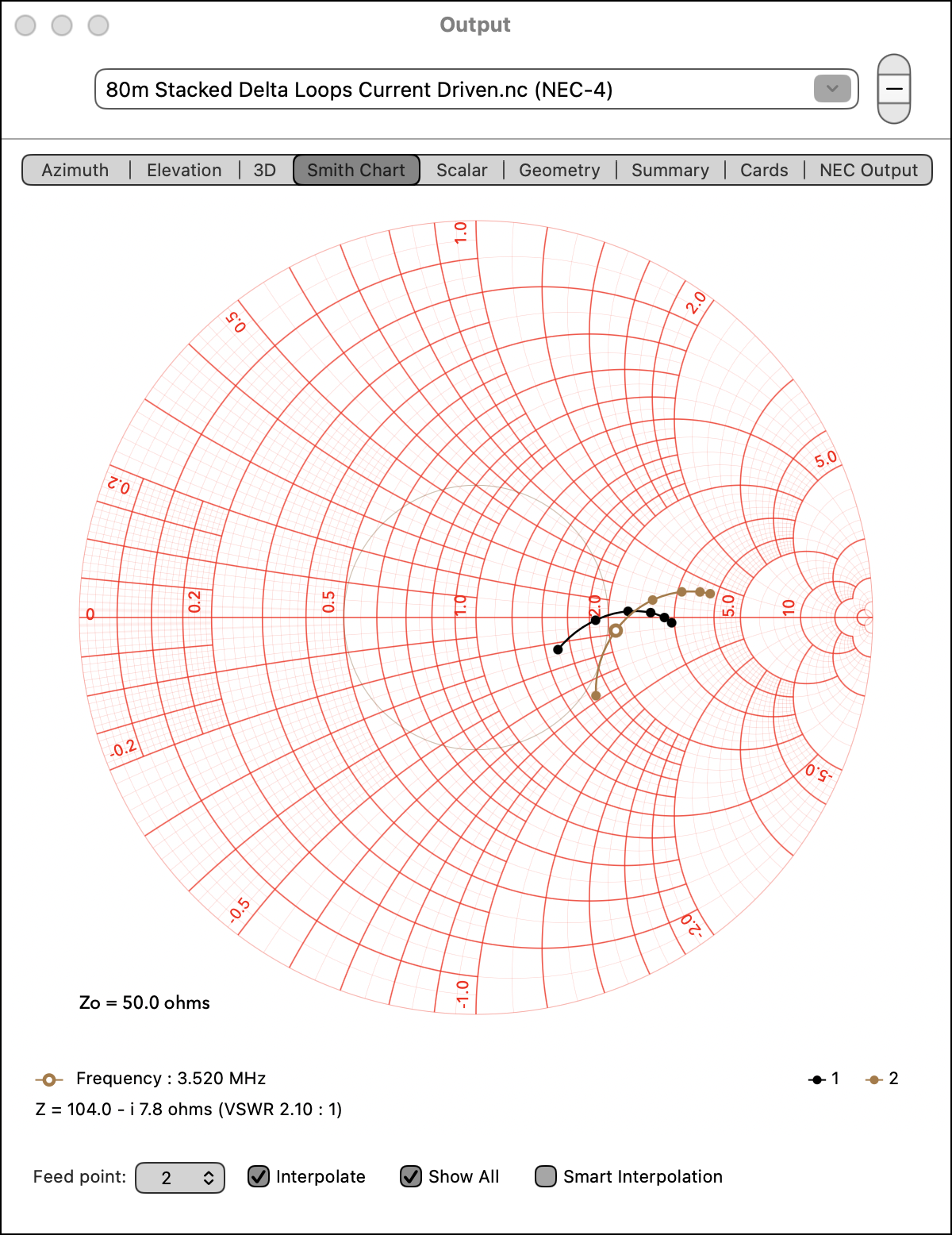
The dots in the Smith Chart are the antenna's feed point impedances. Each dot represents the impedance at a particular frequency.
The Smith Chart encompasses the entire left half of the semi-infinite complex impedance plane into a finite disc. The horizontal line that cuts the Smith Chart into two halves is the resistance axis. The leftmost point on this horizontal line represents zero resistance, while the rightmost point represents infinite resistance. The center of the circle is the reference impedance. The reference impedance is an option (see below later) that the user can select. The caption that is above and to the left of the chart shows the reference impedance (Zo) that is being used; in this case, 50 Ω.
Impedances that have the same VSWR lie on the same concentric circle in a Smith Chart. The center of the Smith Chart is the impedance that presents a VSWR of 1.0:1. The light gray circle in the example are points on the Smith Chart where the VSWR is 2.0:1. The size of the SWR circle is set in the Settings panel. cocoaNEC only draws an SWR circle when its value in the options drawer is greater than 1.05:1. The reference impedance, Zo can also be set in the Settings panel.
Points on the Smith Chart that are below the resistance axis have capacitive reactance and points above the resistance axis have inductive reactance.
The Smith Chart is therefore a very compact representation of a feed point impedance, visually displaying the resistive and reactive parts of an impedance and VSWR information with just a single point in the chart.
A disadvantage of a Smith Chart representation is that it contains only the left half of the complex impedance plane. Negative feed point resistances (which are often encountered in phased arrays) will fall outside the Smith Chart disc. For such cases, it might be better to view the feed point impedance using the Scalar charts instead of a Smith Chart.
The example shows the feed point impedances of an antenna at different frequencies as dots on the Smith Chart. The "selected point" is represented by a dot that has a hole in it (donut). The details of that point (its frequency, impedance and VSWR) are listed under the chart.
Mouse click near any other dot in the Smith Chart to select and view its details. (If the click misses a dot, you will hear a beep.)
The dots in the example are interconnected by a curve. The locus of this curve is not computed by NEC but is simply an estimate of the trajectory of the intermediate impedances by using splines. Unless the dots are moderately dense, do not rely on the curve to accurately represent the impedance values between the green dots. The Interpolate checkbox at the bottom of the Smith Chart view lets you choose whether to display the interconnecting curve. The drawing of this curve is also automatically suppressed when there are fewer than 4 data points.
When the antenna model has more than one feed point, the Feedpoint popup menu at the bottom left of the window lets you to choose which feed point to display inside the Smith Chart. You can also show all feed points at the same time. The following figure shows the output from a phased dipole with two feed points, when the Show All checkbox is selected.
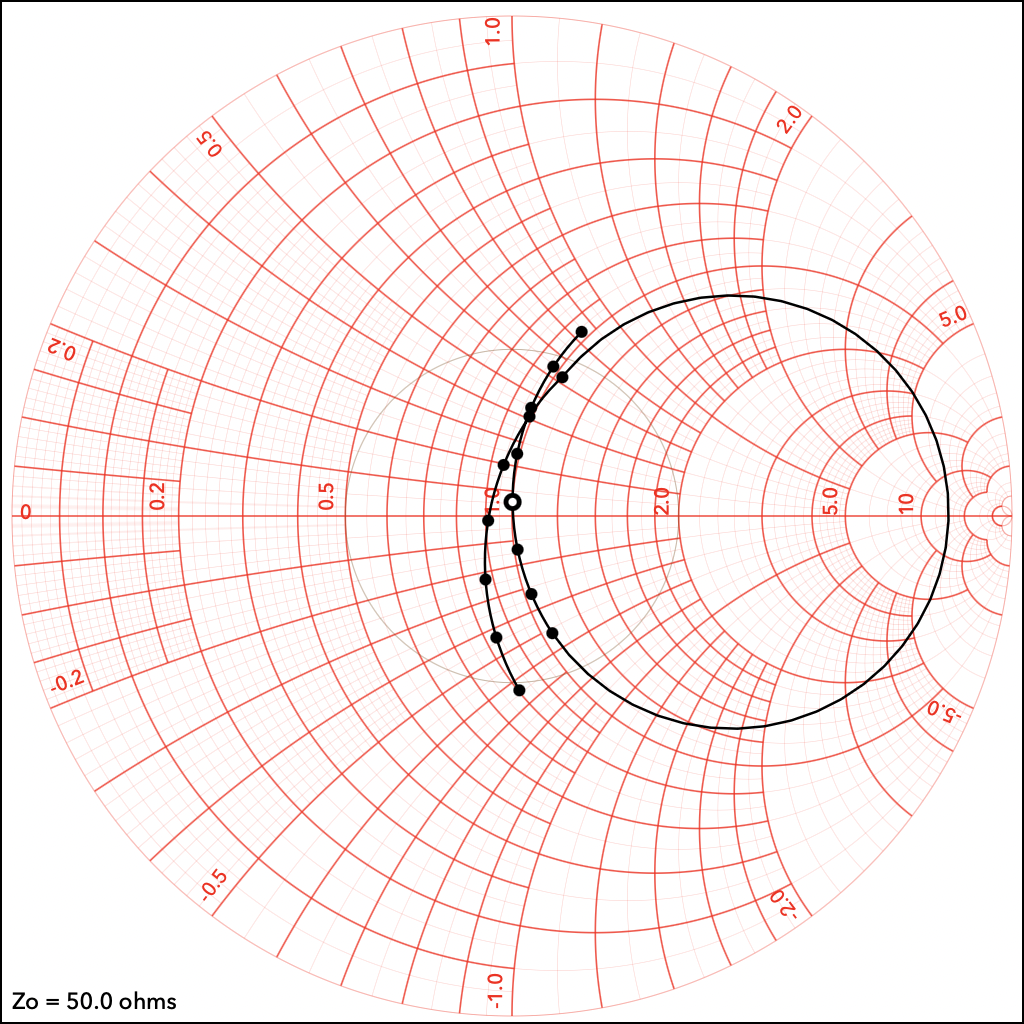
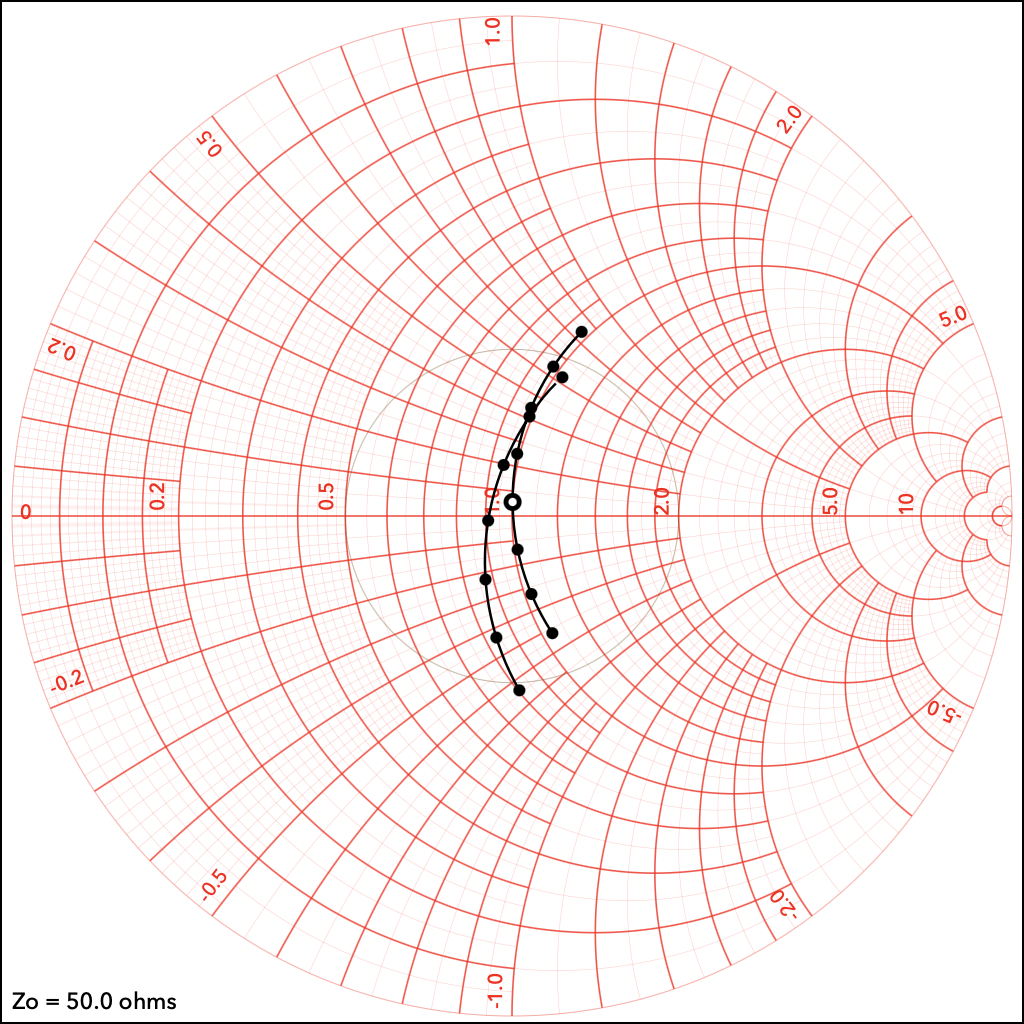
If the "Smart Interpolation" checkbox at the bottom of the Smith Chart View is selected, cocoaNEC will not draw an interpolated curve in between disjoint frequency bands of a multi-band antenna. The following shows the Smith Chart View of the W1ZR 2-band sleeve dipole drawn with Smart Interpolation off:
and with Smart Interpolation on:
Scalar Charts
The scalar charts provide alternate ways of visualizing the variation of the feed point impedance of an antenna versus frequency. This first example shows a scalar plot displaying the impedance (R-X) plot.
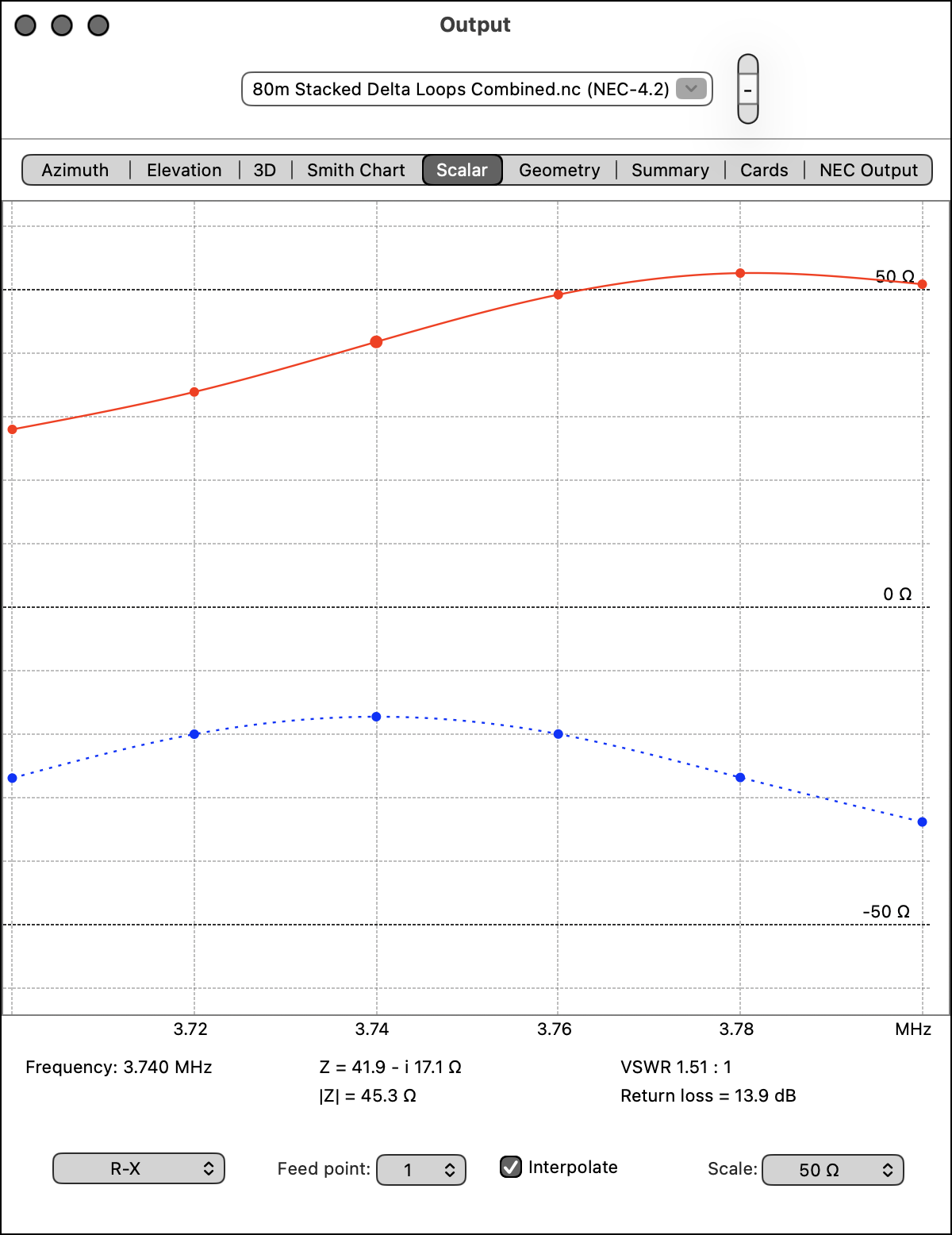
The horizontal axis of a scalar plot is the frequency scale. In the case of an impedance plot, the vertical axis is an impedance value (in ohms). The real (resistive) part of the impedance is plotted with red dots and the imaginary (reactive) part of the impedance appears in blue.
Like the Smith Chart, if there are 4 or more points, and if the Interpolate checkbox is selected, a curve will be drawn through the actual impedance points that are computed by the NEC engine. The imaginary curve uses a dotted line to join the points.
Also like the SmithChart case, you can choose which feed point of a multiple feed point model to plot. To avoid very confusing plots, only one feed point can be displayed at any one time.
For the Impedance plot, you can only click on the real part (yellow dots) to select a point for which to extract detailed data. This data is shown under the scalar chart and include the frequency of the computed point, its complex impedance, the magnitude of the impedance, the VSWR and the return loss.
In addition, you will find a Scale menu at the bottom right of the window. Together with the scroll knob of the scalar plot, this gives you finer control of what you would like to view. You can also see a taller plot by resizing the window. The scale inside the plot is a constant number per pixel.
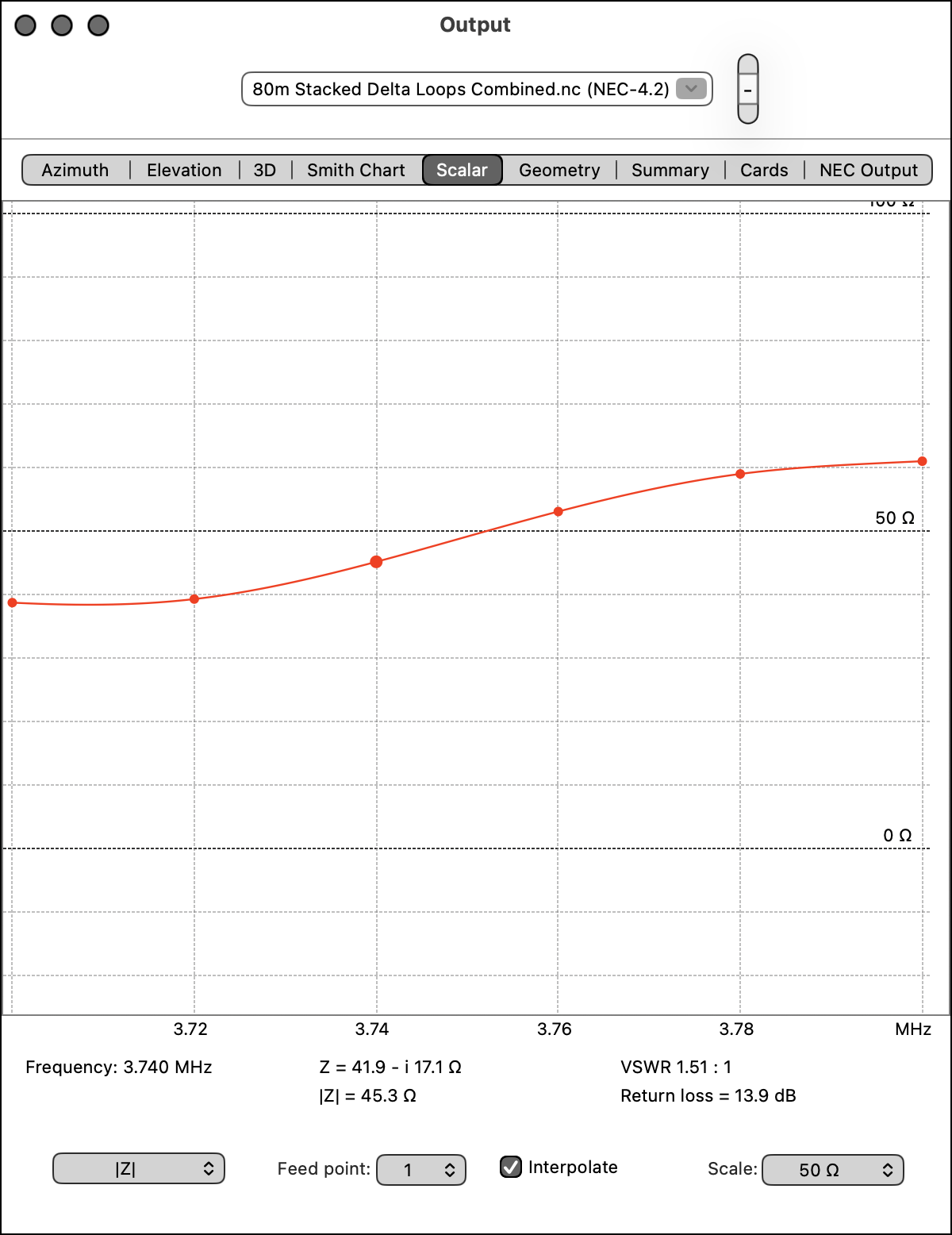
The menu at the bottom right of the window lets you select other scalar views to display. |Z| shows the magnitude of the impedance for the same antenna.
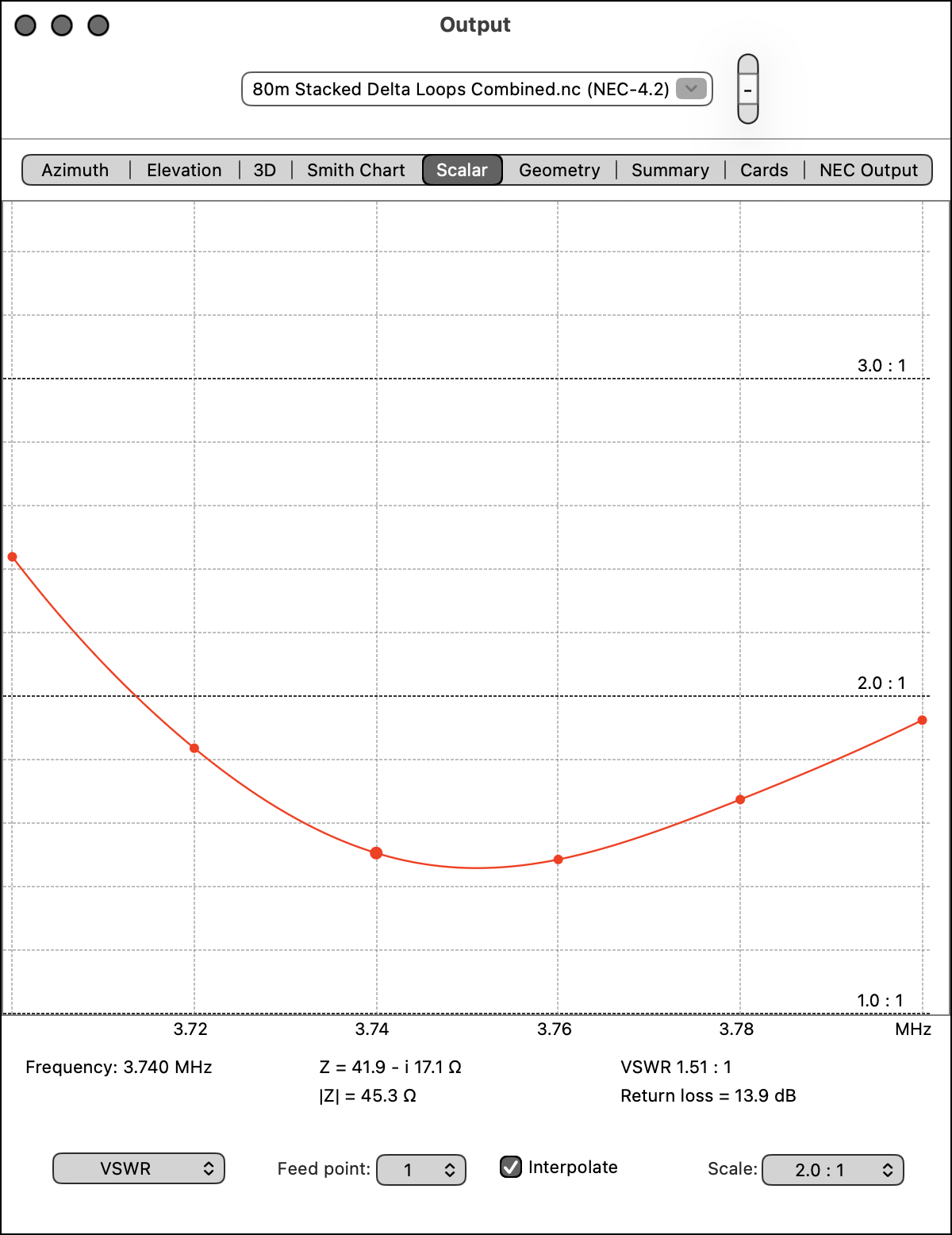
And this is the VSWR for the same antenna.
Geometry
The Geometry tab takes you to the panel that shows the geometry of wire antennas. cocoaNEC may not draw geometries such as arcs, helices and surface patches that are created by the NEC card deck. Complex wire shapes that are programmatically generated by NC should draw correctly.
A six element Yagi-Uda looks like in this in the Geometry View:
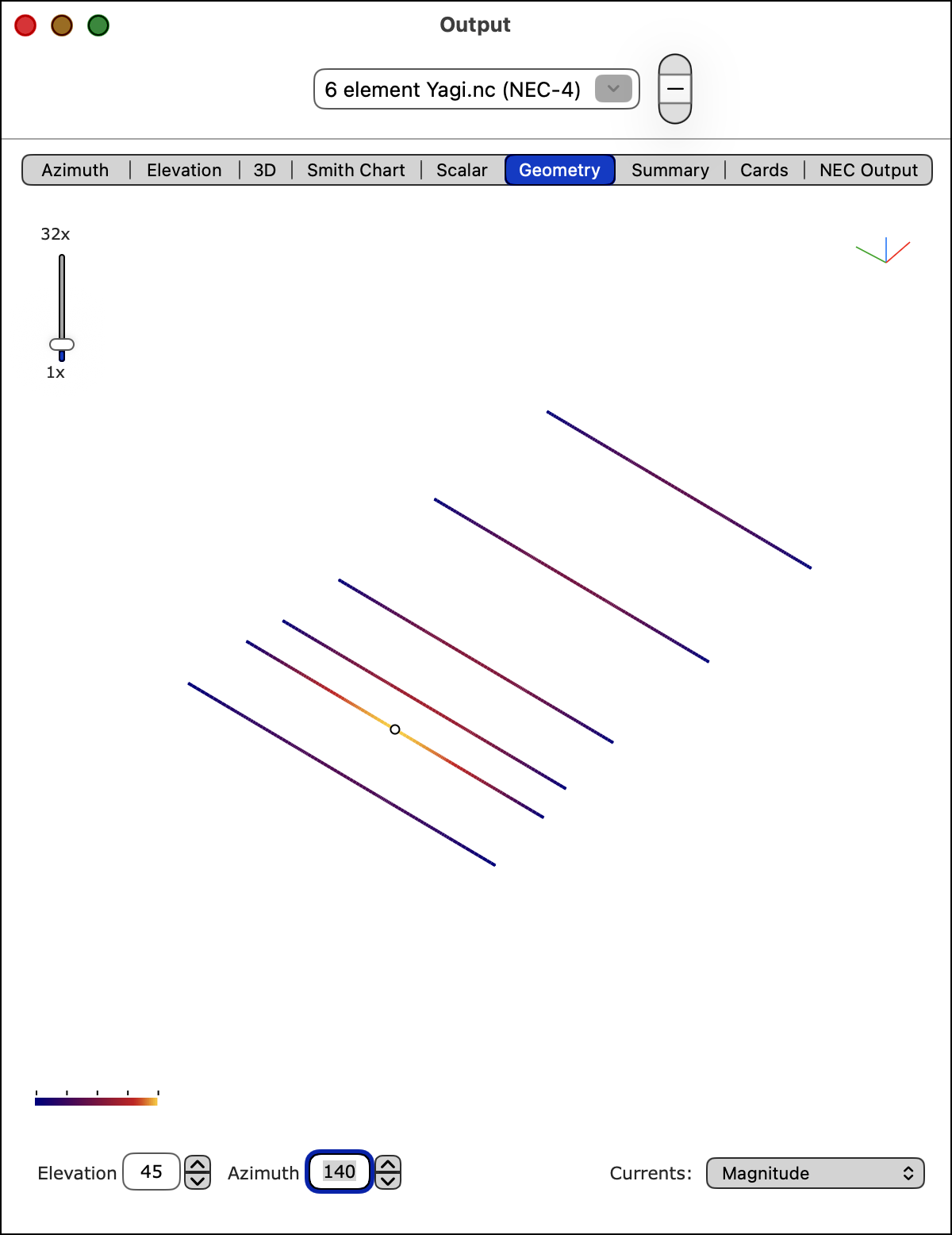
The two fields at the bottom left of the window control the viewing angle relative to the centroid of the antenna. An elevation angle of 0 places the eye at the same height as the centroid. An elevation angle of 90 degrees corresponds to placing the eye straight above the centroid and looking back at the antenna from the +z axis. An elevation angle of -90 degrees corresponds to placing the eye below the centroid and looking up at the antenna from the -z axis.
A triad of unit vectors appear at the top right hand corner of the view. The red, green and blue (RGB) colors correspond to the x, y and z directions, respectively.
An azimuth angle of 0 corresponds to placing the eye on the +x axis and looking back at the antenna. An azimuth angle of 90 degrees corresponds to placing the eye on the +y axis.
You can set the angle by either typing directly into the text fields, or by using the up and down arrow steppers. The buttons autorepeat, so you can hold down the button and see an animation of the model. The elevation angle has hard stops at -90 degrees and +90 degrees. The azimuth angle wraps around the circle, with 360 degrees wrapping back to 0.
The slider at the top left of the view magnifies the structure geometry from the original 1x continuously up to a scale factor of 32x. You can also "pan" the drawing up and down and left to right by holding down the mouse in the view and dragging the cursor while the mouse button is held down. While the mouse is held down inside the Geometry view, the cursor turns from an arrow to an open hand.
When the Geometry view is panned, a re-center button will appear and you can reset the panning action with the button:

Geometry: Currents
When you control click (or right mouse click) on the Geometry view, a green dot is drawn at the wire segment that is closest to the cursor. This is shown in the figure below:
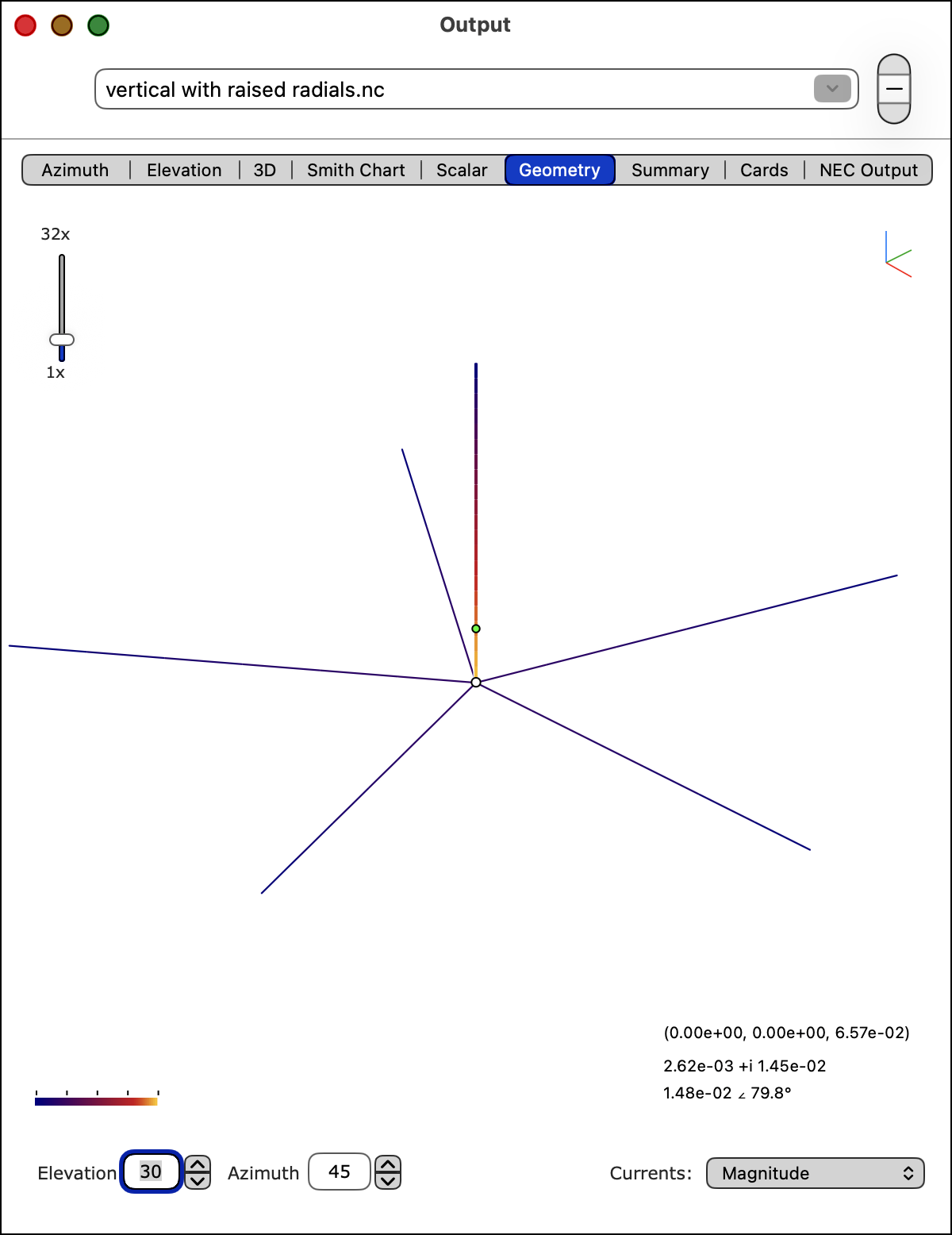
Information for the selected segment is shown at the bottom right corner of the Geometry view. The first row has the x, y and z coordinates of the center of the segment. The second line of text has the vector current, and the third line shows the current magnitude and phase angle.
In addition, a Wire Current window is drawn to show the distribution of current on the wire of the selected segment
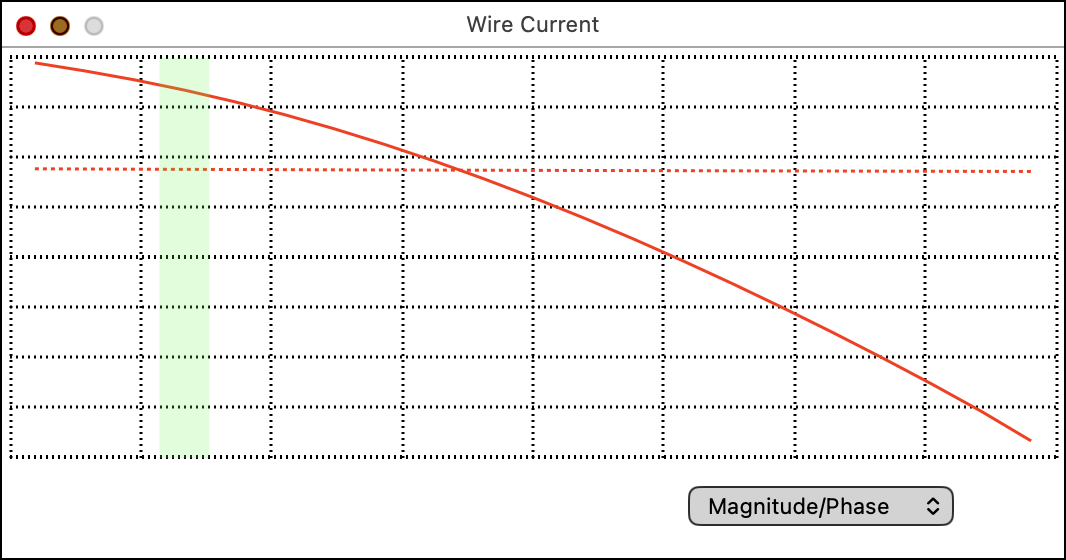
You can select either a Magnitude/Phase plot or a Real/Imaginary plot.
The currents are normalized to the largest current in the entire geometry. Phase angles are drawn from -180 degrees (bottom) to +180 degrees (top) in the dashed red line as shown above. A light green bar shows the segment location within its wire.
Real and imaginary currents are centered to the middle of the plot, with negative currents below the center line and positive currents above the center line.
Use shift-control-click (or hold down the shift key with a right mouse click) anywhere in the view to remove the information (and green dot).
The Currents menu at the bottom right of the window can be set to None, Scaled Magnitude, Magnitude, Magnitude and Phase, Magnitude and Relative Phase and Current Gradient.
With the Currents menu set to None, antenna current information is not plotted. When the Currents menu is set to Magnitude, the colors of the antenna segments correspond to the magnitudes of the current. Maximum current appears as a bright yellow and zero current appears as dark gray. A scale is shown on the bottom left corner of the view. The Scaled Magnitude selection is similar to Magnitude selection except the low current portions are stretched to better see low currents.
When the menu is set to Magnitude and Phase, the currents appear as colors in the HSV color space. The phase angle of a current corresponds to the hue of the color, and the magnitude of a current corresponds to the value of the HSV color (brighter colors carry larger currents). The colors that correspond to the various phase angles for the maximum current are shown in the color wheel on the bottom left corner of the view.
The following shows the Magnitude and Phase view of the vertical with raised radials:
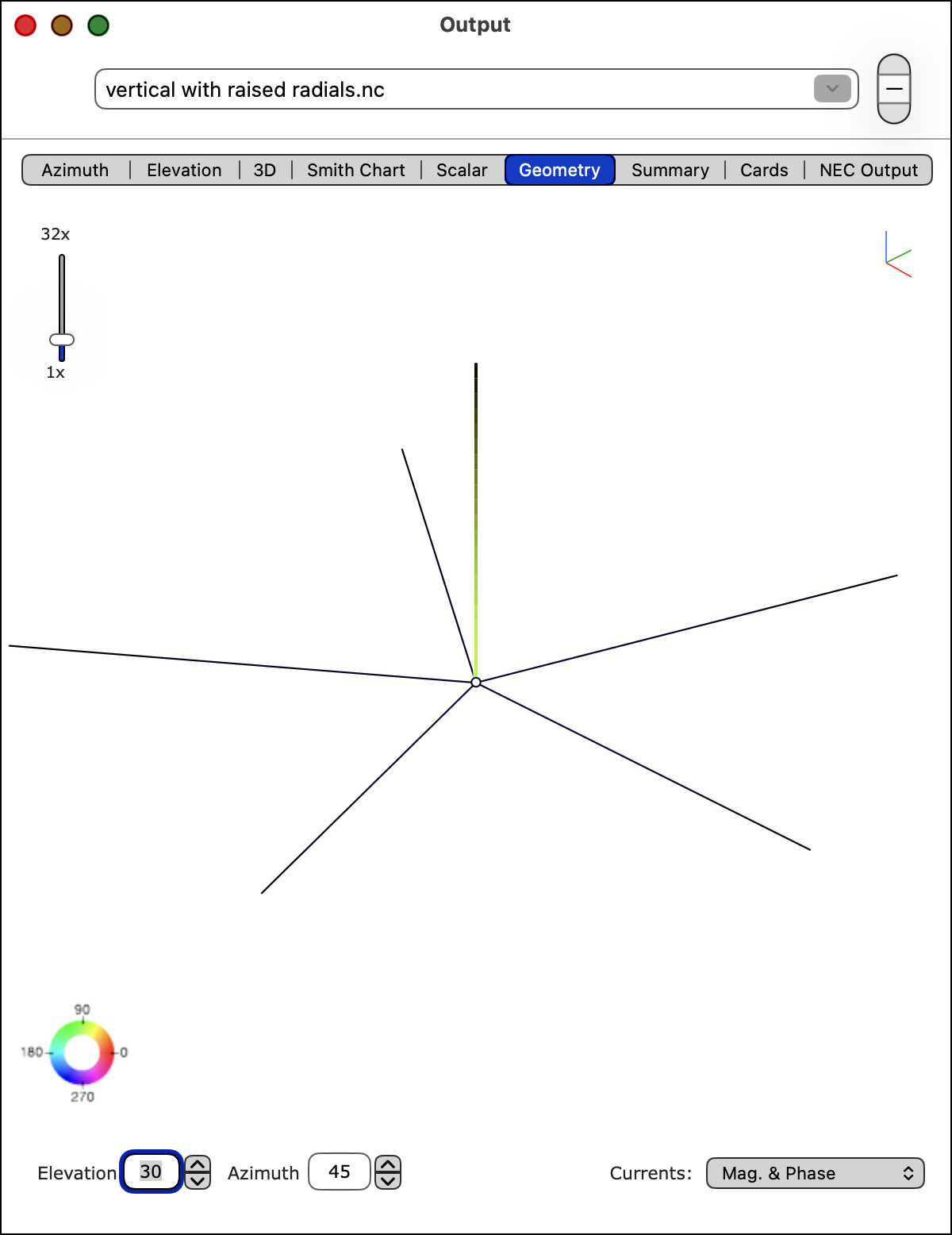
The Magnitude and Relative Phase setting is similar to the Magnitude and Phase setting except all phase angles are referenced to the phase of the current in the segment with the largest current.
Geometry: Sources and Loads in the Geometry View
Voltage sources are drawn as open circles in the Geometry view. Current sources are drawn with a double circle.
Loads such as impedance and RLC loads are displayed in the Geometry view as small crosses.
Distributed loads such as wire conductances are only drawn when the "Draw Distributed Loads" checkbox is selected in the Settings panel.
Geometry: Radials
NC in cocoaNEC has a function, radials(), for adding radial wires to the geometry. In addition to the convenience factor, wires that are added with the special radials mechanism are specially tagged so that their drawing can be omitted in the Geometry view.
The default state of the Geometry view is to not draw the radials, but you can ask cocoaNEC to draw them by checking the Draw Radials box in the Settings panel.
Note that the function necRadials() generates radials that are internal to NEC-2 and don't appear as wires in the NEC output.
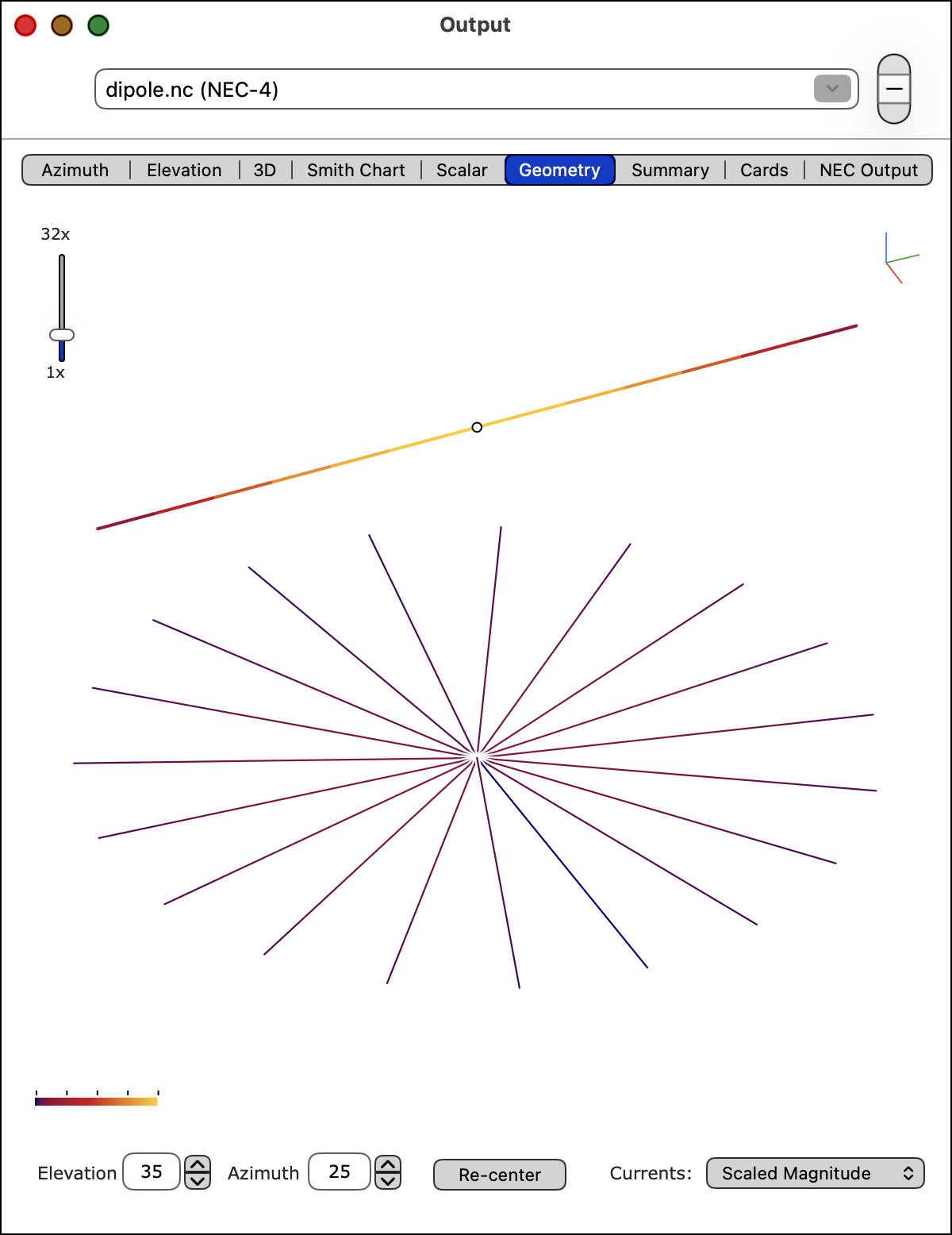
Notice that the Scaled Magnitude menu is chosen in the above figure. The currents in the radials for this case are very low and the slight differences of the currents for the individual radials would not have shown up if Magnitude were selected.
Context and Reference Plots
The Output window discards the data from a previous run when you rerun a model through NEC. However, when you run more than one model during a cocoaNEC session, the data from each model is saved into a different context. You can quickly switch between the data from the different contexts by using the popup menu that is in toolbar of the Output window:

When you no longer need a context, select it as the current context and use the minus button on the right of the menu to remove it.
NEC-2 and NEC-4 runs from the same model will create different contexts. You can therefore compare NEC-2 outputs with NEC-4 outputs. NEC-4 contexts will have a "(NEC-4)" label in the context name.
Any context can be used as a reference context. To do that, first select the context and then go to the Output Menu in the menu bar to select Use As Reference:
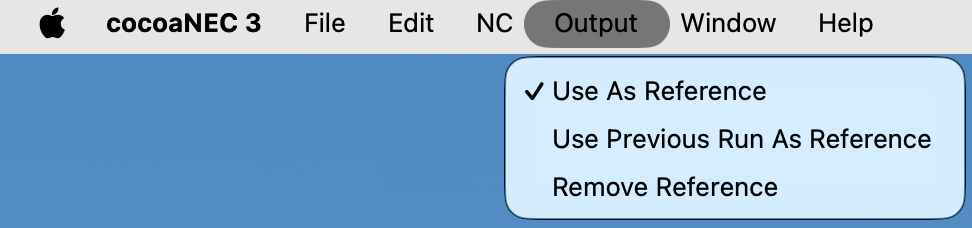
A black square is shown at the left of the reference context popup menu when the selected context is the reference context.
The Output menu also shows a "Use Previous Run as Reference" menu item. Instead of using a different antenna model as the reference, you can use the most recent run from the same model as the reference. By selecting "Use Previous Run as Reference," you can observe your progress when you make changes to a model.
Once you choose a reference antenna, its plot will be superimposed on the plots of the other antennas. The example shows a dipole over average ground as the reference, superimposed as a black dashed line, on the plot for of a two element Yagi at the same height and ground as a solid black line.
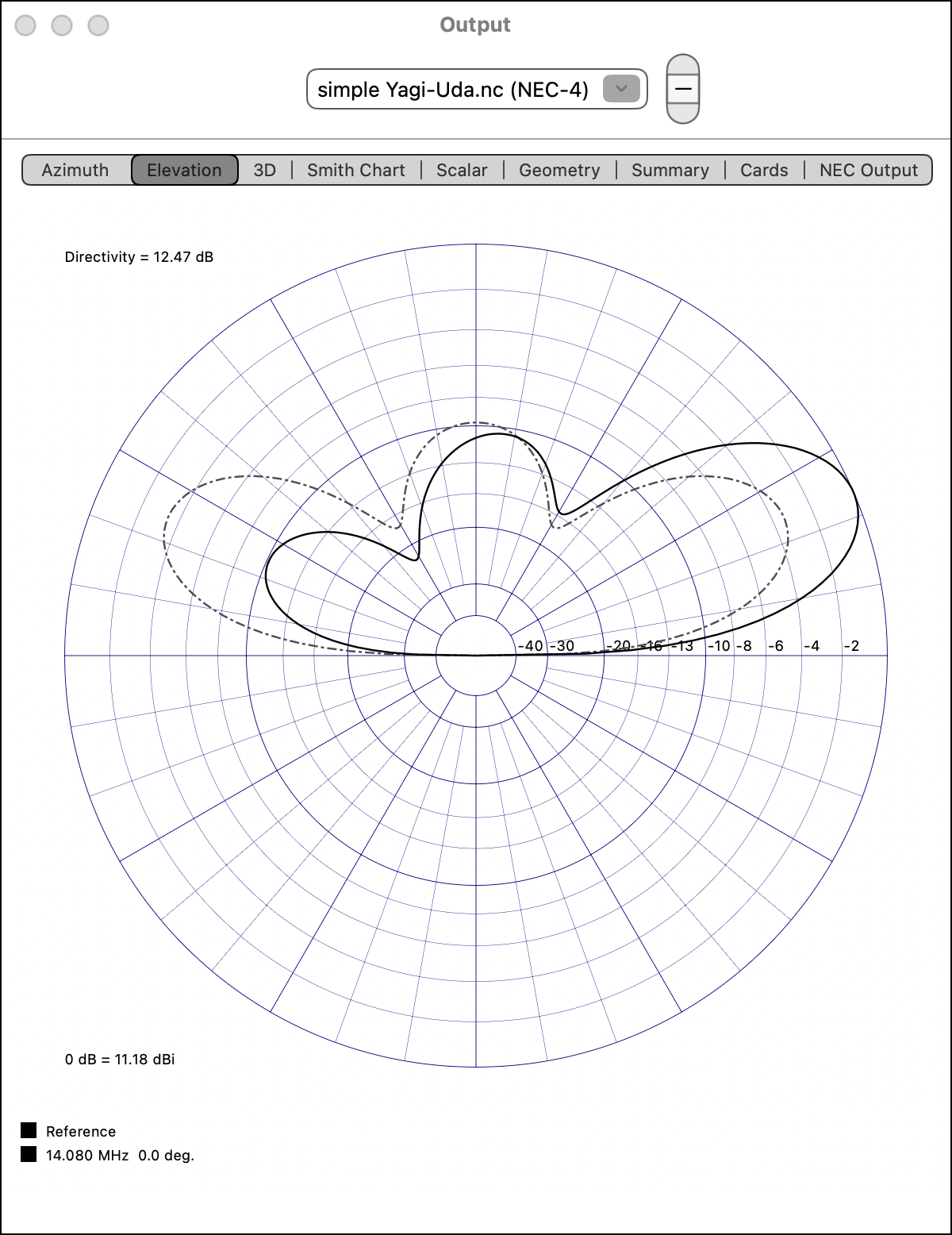
When the reference context has multiple antenna patterns, the first pattern is plotted as the reference pattern.
The Smith Chart draws the feed point of the reference context as a gray disc, shown below:
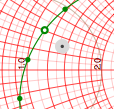
When the reference context has multiple feed points, the first feed point is displayed as the reference in the Smith Chart.
Settings Panel
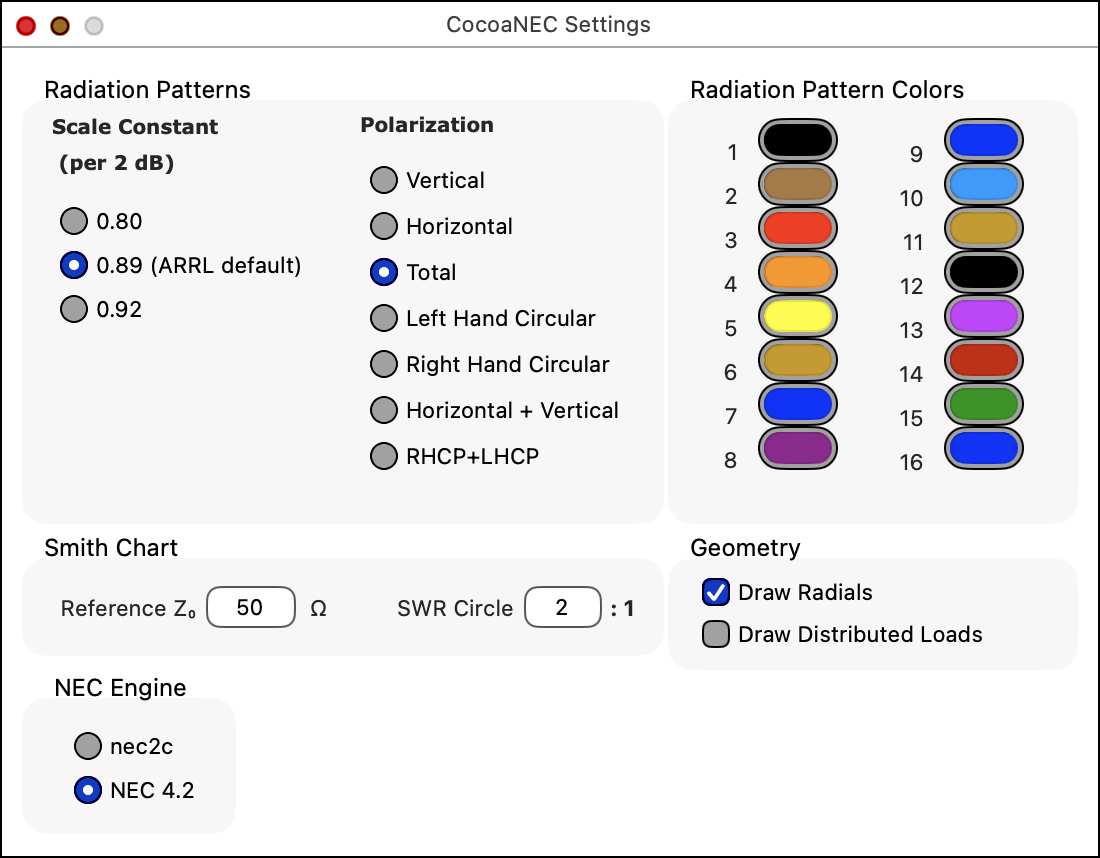
All of the items in the Settings panel apply to the Output window except the NEC Engine choice. Any changes you make in the the Settings panel are remembered across restarts, and most take effect without needing to rerun a model. The purposes of the settings are introduced in the discussions.
Back to: Reference Manual