cocoaNEC Reference Manual
Input Interfaces
The NEC engines expect antenna geometry (wires, surface patches, etc.) and control input (loads, excitation voltages, frequencies, etc.) in the form of a Hollerith "card deck." Each "card" consists of a text line of up to 80 characters. The card formats are defined in the Program Input section of the NEC-2 documentation.
The NEC-4 card formats are mostly the same as NEC-2. NEC-4 has cards that do not appear in NEC-2, and some cards, such as the GH card, have different formats.
There are two methods in cocoaNEC to convert user antenna models into a NEC card deck. One of these methods is a C-like interpreter (called NC), where geometries are described with formulas. The second is direct card deck input, with a card editor. NC Reference describes the NC interpreter in detail.
File Menu
The cocoaNEC File menu is used to open and save the antenna models.

The menu items in the first group are used to open NC models, and the File menu items in the second group are used to open files that are formatted as NEC "Card Decks."
The Save and Save As... menu items are common to both input interfaces. When Save or Save As... is selected, the antenna model in the currently active window will be saved to a file. The default file extension for an NC file is ".nc" and the default file extension for a card deck is ".deck".
You can convert an NC program into a NEC card deck using Export Card Deck... . Like cocoaNEC, many other antenna programs are able to accept NEC card decks.
In addition to displaying antenna data that are generated from a cocoaNEC workflow, cocoaNEC's Output window can also display graphical data that are created by other programs, as long as those programs can produce the nec2c or NEC-4 output ("line printer") formats. Use Open Output File to load that kind of file.
The Close menu item will close the active model window. cocoaNEC remains open even when there are no remaining open windows.
NC Editor
An NC window has three tabs: NC Source, Listing and Card Deck. The NC Source tab holds the editor where you write your program, and a console pane below it. The row at the bottom of the window holds the issue bar, the console button, the Stop button and the Run button (command-R).
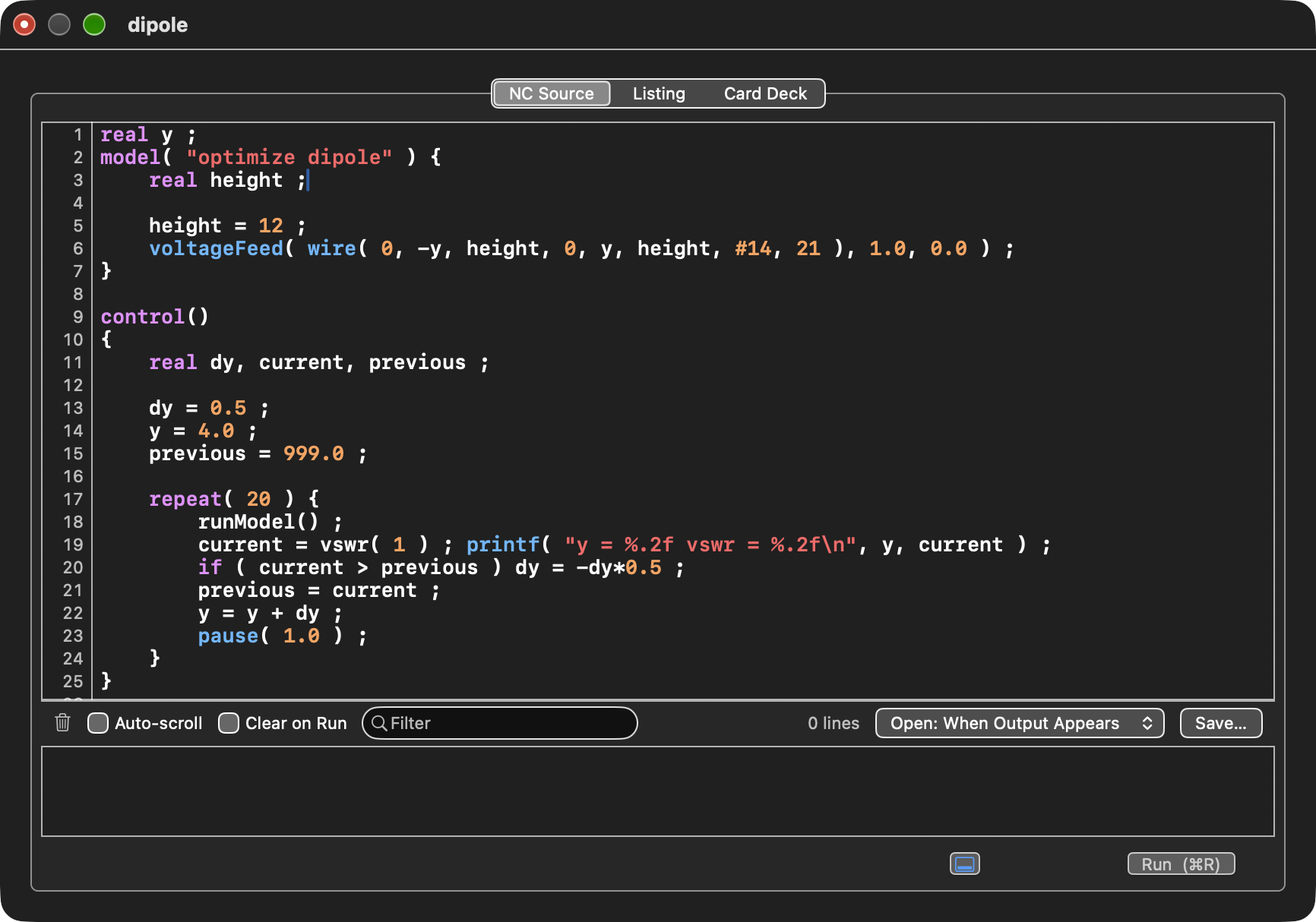
The editor numbers the lines of your program in a column at the left. It colors keywords, built-in functions and constants, numbers, strings, comments and #include directives.
When you press Return, the new line starts with the same indentation as the line above it. If the line above ends with an opening brace, the new line is indented four more spaces.
The editor does not keep tab characters. The Tab key inserts the spaces that reach the next tab stop, and tab stops are every four columns. When you open a file or paste text, the editor changes its tabs to spaces and its line endings to the Unix line ending. A file that you save from the editor therefore contains no tabs.
These commands in the Edit menu work on every line that the selection touches:
Shift Right (command-]) adds four spaces to the start of each line. Pressing Tab with more than one line selected does the same.
Shift Left (command-[) removes up to four spaces from the start of each line. Shift-Tab does the same.
Toggle Comment (command-/) adds
// to
the start of each line. If every selected line already
starts with //, it removes them instead.
To complete a word, type its first letters and press Escape. The editor lists the NC keywords and built-in names that begin with those letters.
When the insertion point is next to a round, square or curly bracket, the editor briefly highlights the bracket that pairs with it. Brackets inside comments and strings are ignored.
Wrap Lines in the Edit menu chooses whether long lines wrap at the edge of the window or continue to the right with a horizontal scroll bar. The choice applies to every NC window, and cocoaNEC remembers it.
Find... (command-F) and Find and Replace... (option-command-F) in the Edit > Find menu open a find bar above the program. The editor highlights matches as you type.
The NC Model page of the tutorial describes how to change the font.
Errors
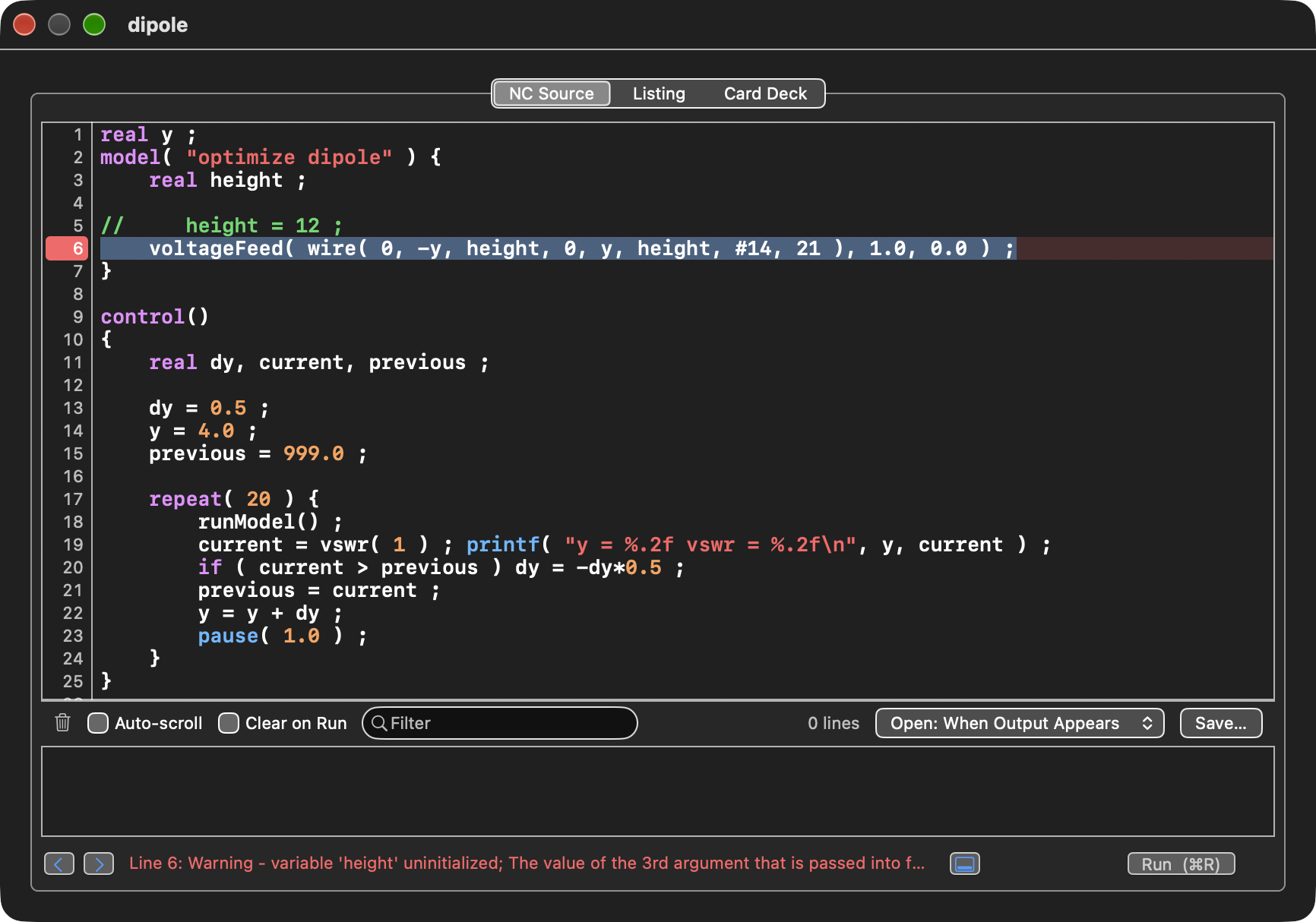
When you press Run, NC compiles your program first. If the compiler finds errors, the model does not run. The editor selects the first line with an error, tints each error line red, and puts a red marker on its line number. The issue bar shows the messages for the line that holds the insertion point, or the number of lines with errors when the insertion point is elsewhere. Hold the pointer over the issue bar to see a message that is too long to fit.
To move between error lines, use the arrow buttons in the issue bar, or Next Error (command-') and Previous Error (command-shift-') in the Edit menu. Clicking a red marker selects its line. The markers are removed as soon as you edit the program, because the line numbers may no longer match the text.
If the error is in a file that your program brings in with #include, the editor marks the #include line, and the message names the included file and the line in it.
Some errors are found only while the program runs: an undefined function argument, a division by zero, an array index out of range, and a variable used before it has a value. When the run ends, the editor marks the lines where these happened in the same way as compile errors. Other messages from the run appear in the console.
The console pane shows the output of the printf statements in your program. To show or hide it, click the console button to the left of the Run button, or choose Show Console (command-shift-C) in the NC menu. You can drag the divider between the editor and the console to change its height. cocoaNEC remembers whether the console is shown and how tall it is.
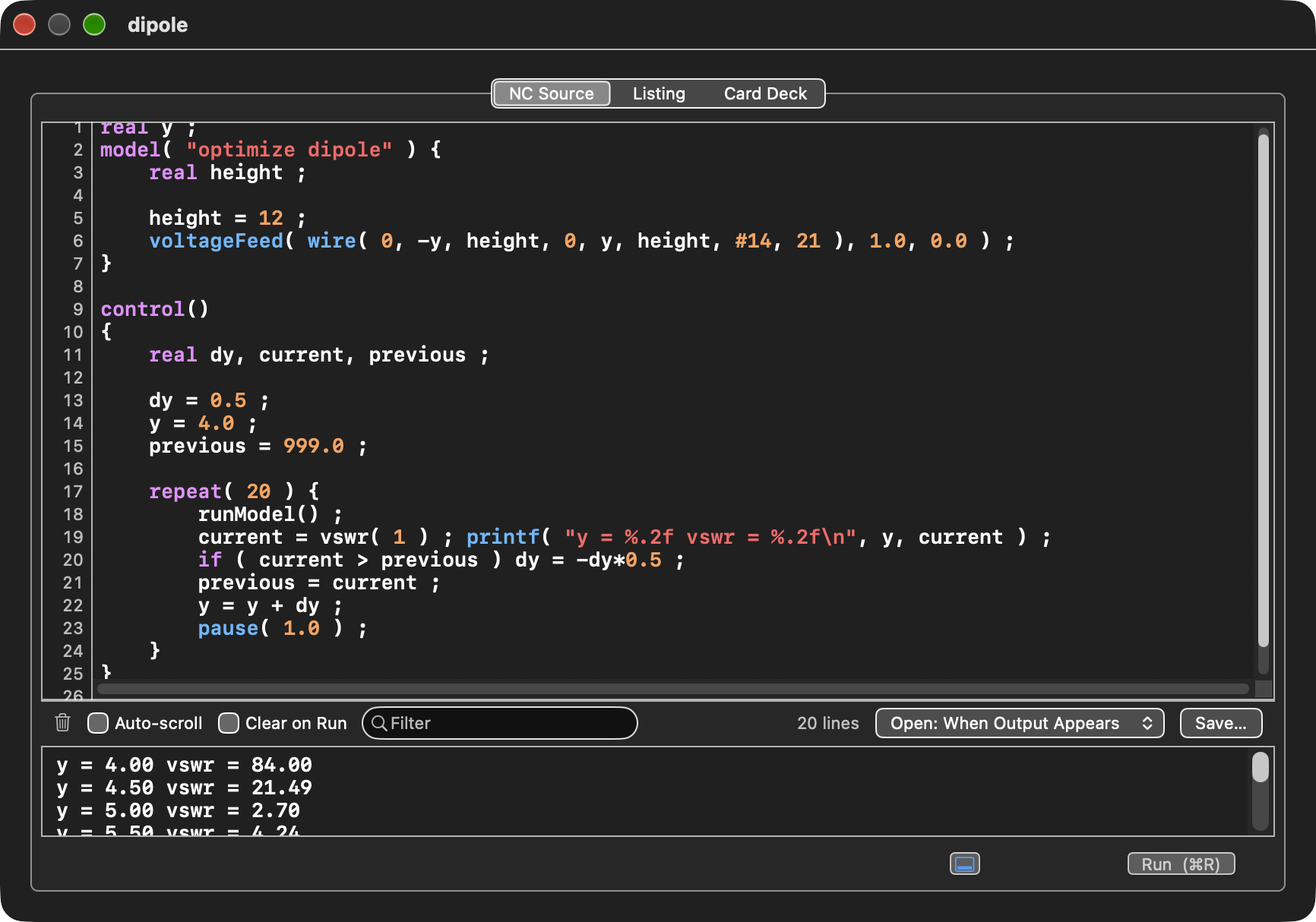
The trash button clears the console.
Auto-scroll keeps the newest line in view. It turns off when you scroll up to read earlier output, and turns back on when you scroll to the bottom.
Clear on Run clears the console at the start of each run. When it is off, the console keeps the earlier output and starts each run with a separator line that shows the run number and the time.
The Filter field shows only the lines that contain the text you type. Separator lines are always shown.
The line count shows how many lines the console holds. While a filter is in use, it shows how many of them match, for example "12 of 40 lines".
The Open menu sets when the console opens by itself: Never, When Output Appears (the first time a run prints something), or Every Run.
Save... saves the lines that are shown to a text file.
cocoaNEC remembers the Clear on Run and Open settings. The console keeps up to 50,000 lines and removes the oldest lines when it passes that limit.
Listing and Card Deck Tabs
The Listing tab shows your program with line numbers. Double-click a line in the listing to go to that line in the editor.
The Card Deck tab shows the NEC card deck that the last run created. If the NEC engine fails, you can look at this deck to find the cause.
Card Deck Input
The card deck window edits a NEC card deck directly, one card at a time. To open a deck, choose Open Card Deck... or Recent Card Decks in the File menu. cocoaNEC has no command to start an empty deck. To make a deck from an NC model, open the model and choose Export Card Deck... in the File menu.
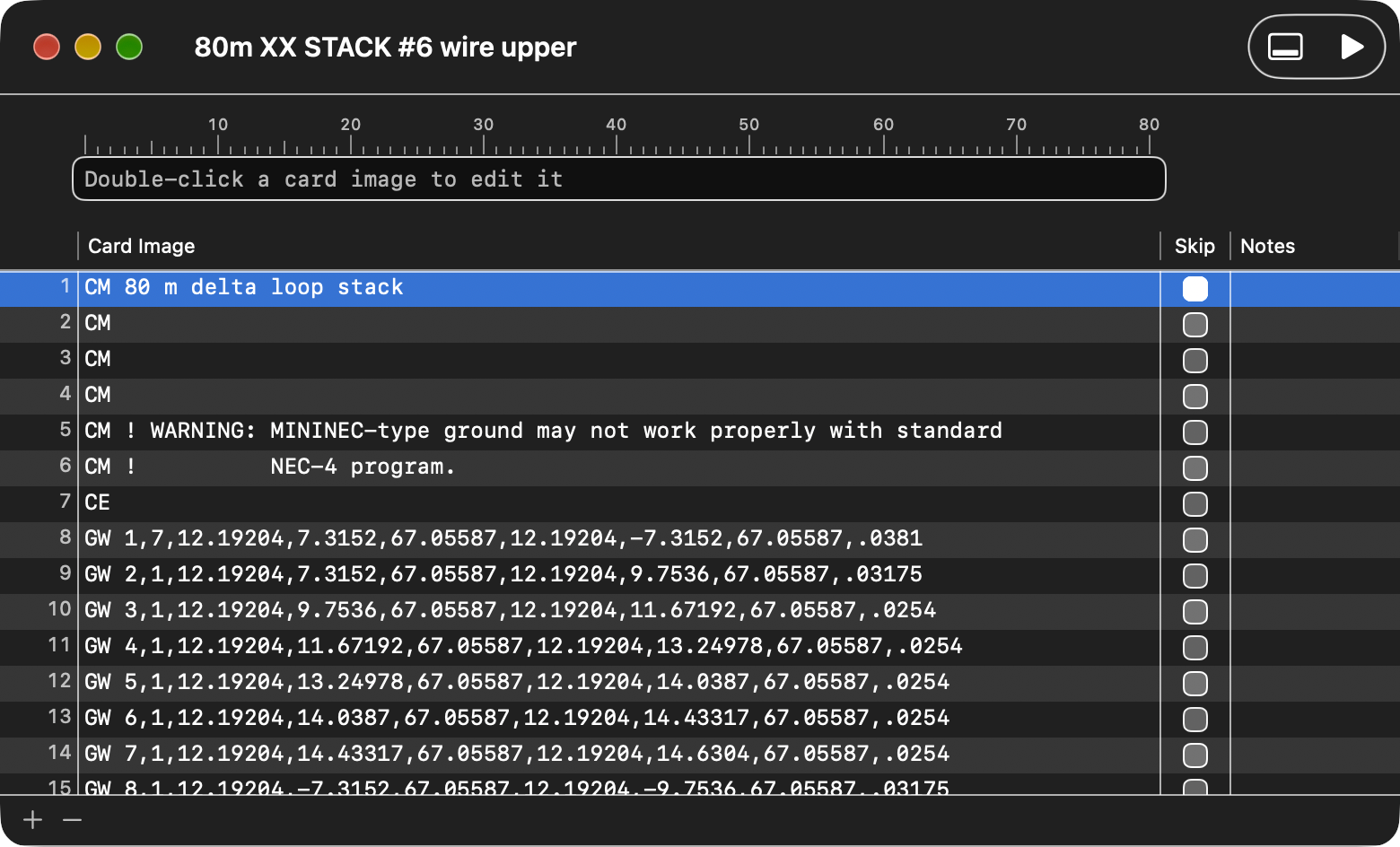
The Card Table
Each row of the table is one card. The table has four columns:
The first column numbers the cards.
Card Image shows the text of the card. The column is exactly 80 characters wide, the width of a punched card.
Skip keeps a card in the window but leaves it out of the deck. A skipped card is not sent to NEC when you run the deck.
Notes holds a note that you type for your own use.
When you save, the deck file contains only the cards that are not skipped, so other antenna programs read it as an ordinary NEC deck. cocoaNEC also stores the complete list of cards, with their skip marks and notes, as an extended attribute of the file. When you reopen the deck in cocoaNEC, the skipped cards and the notes come back.
cocoaNEC uses the stored list only if the file has not changed since cocoaNEC saved it. If another program edits the deck, cocoaNEC opens the cards that are in the file, and the skipped cards and notes are gone. Some ways of copying a file, such as some file servers and email attachments, drop extended attributes and have the same effect.
The add (+) button under the table adds an empty card below the selected card and opens it for editing. The remove (-) button deletes the selected card.
Undo in the Edit menu (command-Z) reverses the last change to the cards: adding or deleting a card, editing a card, checking or clearing Skip, or editing a note. Redo (command-shift-Z) makes the change again.
Editing a Card
To edit a card, double-click its Card Image. The text of the card moves to the edit field above the table. The card stays in the table below the field until you finish, so you can compare the two.
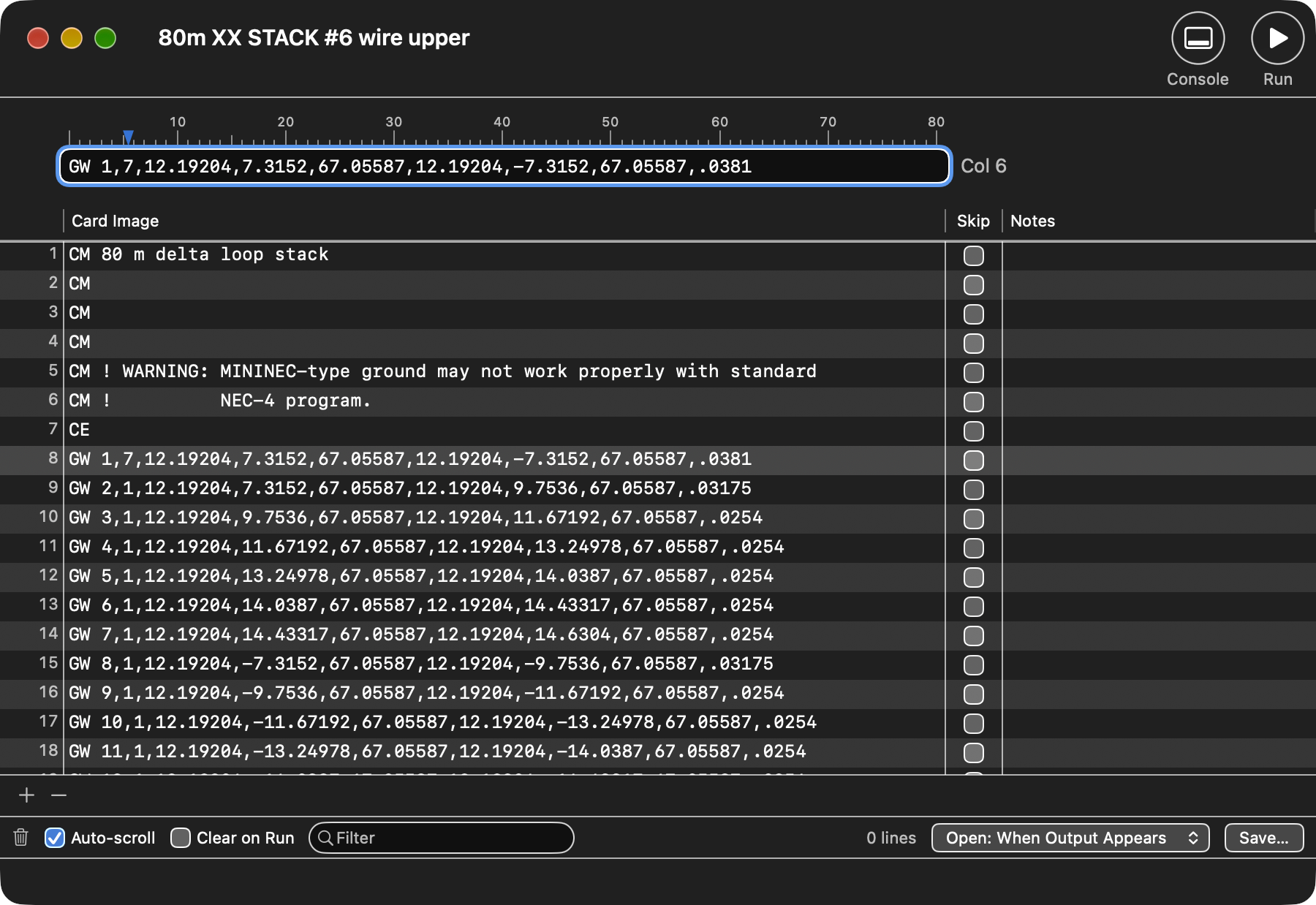
The card takes the new text when you press Return or Tab, or click elsewhere in the window.
When you save or run a deck, cocoaNEC writes every card in upper case, except the comment text of CM cards, which keeps the case you typed.
Running a Deck
Click Run in the toolbar to send the deck to the NEC engine selected in Settings. The results appear in the Output window. Card decks run in double precision.
NEC computes the pattern tables that the Output window plots only when the deck has RP cards. If your deck has no RP card, cocoaNEC adds the same pattern cards to the run that NC adds to a model: an azimuth plot at 20 degrees elevation (0 degrees in free space), an elevation plot at 0 degrees azimuth, and the 3D pattern. These cards are added only to the run, not to the deck in the window or the saved file. A deck that has its own RP cards runs as written.
Decks written by EZNEC that use a current source report the correct feed point impedance in the Output window.
Console
Messages from a run, such as an error code from the NEC engine, go to a console pane under the card table. To show or hide it, click Console in the toolbar, or choose Show Console (command-shift-C) in the NC menu. If showing the console would leave too little room for the cards, the window grows taller. The console has the same controls as the NC console.
Saving and Closing
Save and Save As... in the File menu write the deck to a file with the extension ".deck". If you close the window or quit cocoaNEC while the deck has unsaved changes, cocoaNEC asks whether to save them. Choose Save, Don't Save, or Cancel. If you cancel the save panel, the window stays open.
Next: NEC Engines
Back to: Reference Manual